


bobi
Members
-
Joined
-
Last visited
-
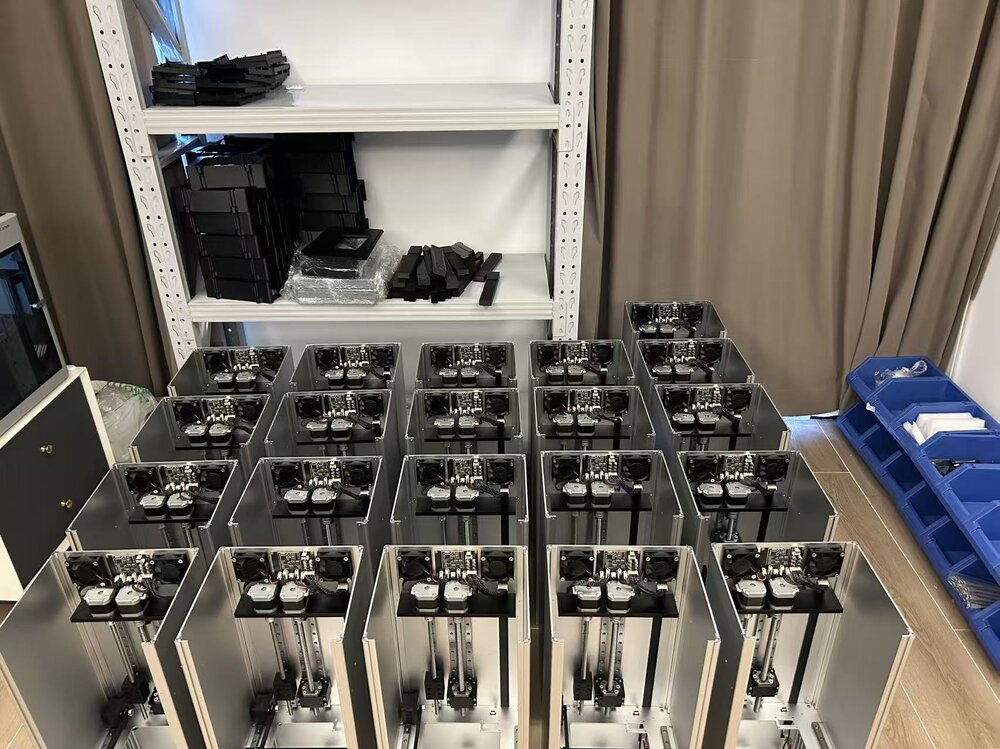
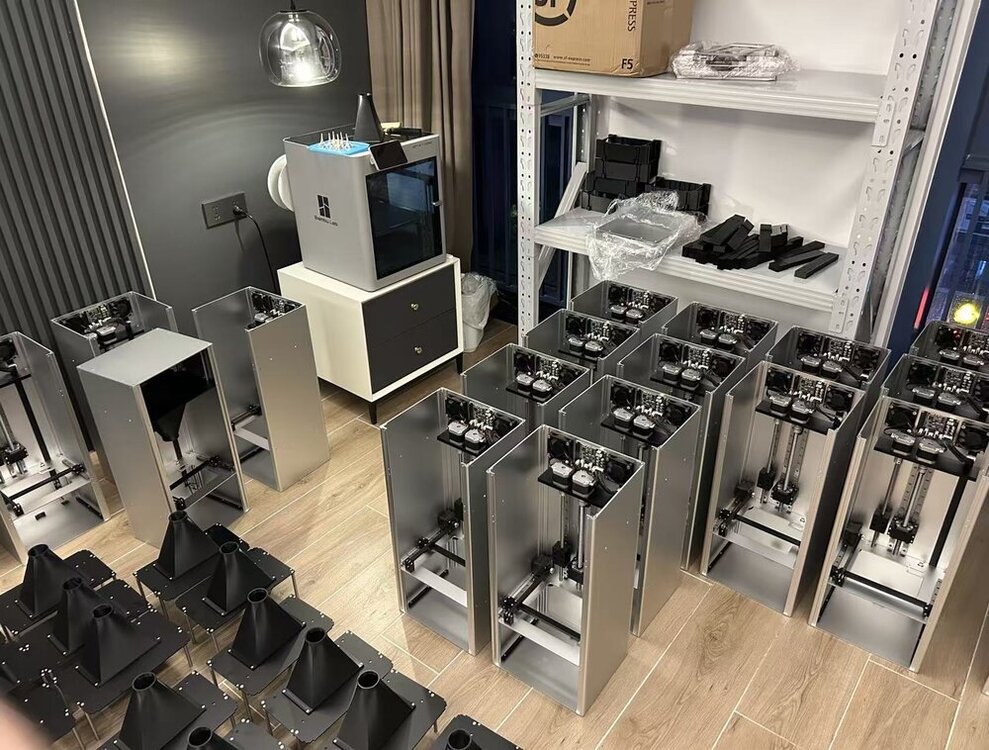
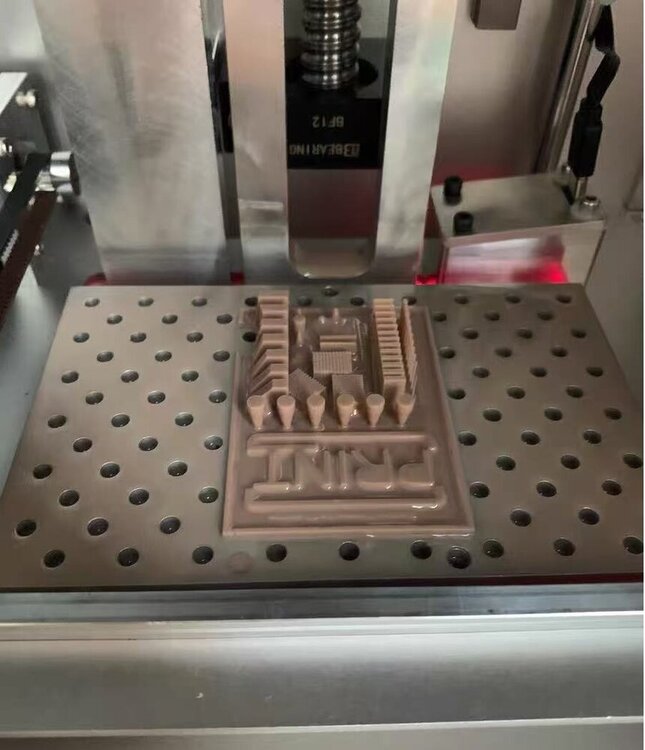
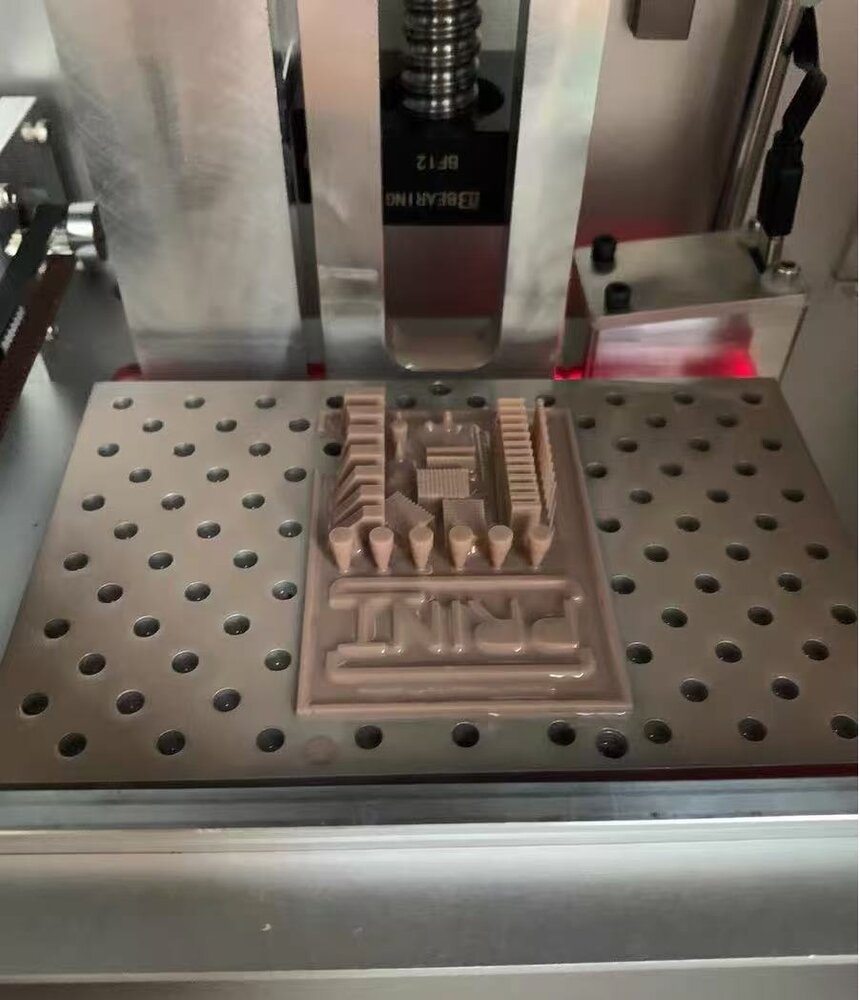
I'm part of the team developing LUOYING A1, a compact top-down resin printer. I'd like to share a few physical photos and ask which print sample would make the hardware easier to evaluate. The platform moves down into the vat, with layers formed at the resin surface. Our design combines resin replenishment, laser level feedback and blade recoating, without a release-film peeling step. The attached photos show front-view assembly, parts in the workspace and a physical test piece on the platform. These are separate from our design renders and animation. For a future sample set, I'm considering showing the same small part at several positions on the platform, together with the actual resin, orientation, settings and post-processing used. I'd also include close-ups with a scale reference. That is a proposed comparison, not a repeatability or accuracy result. Which features would you find most informative in that sample: holes, thin walls, raised lettering or a combination? If there is a part you routinely use to reveal a resin printer's limitations, I'd be interested in what it helps you observe. Disclosure: this is our own product project. Project context and more photos: https://luoying3d.pages.dev/ The photos are ours; this English text was prepared with AI writing assistance. No dimensional accuracy, resin compatibility or completed-test claim is being made.