


Printer & Cartridges: Essential Solutions for Reliable Printing

Featured Replies
Topics
-
In today’s digital world, businesses and individuals still rely on efficient printing solutions for documents, reports, labels, and important records. Printer & Cartridges play a vital role in delivering clear, high-quality prints while ensuring smooth performance for different printing requirements. Choosing the right printer accessories helps improve productivity and reduces printing interruptions. From office environments to personal workspaces, reliable cartridges ensure sharp text, accu
-
I reached 10,000 downloads on Printables and I wanted to say thank you to everyone who supported me and my models! Moreover, I wanted to share a few things about my journey and what comes next. I started making and uploading 3D models in October 2025. I made my first designs in TinkerCAD and Blender. Then I discovered FreeCAD, and I have been using it ever since. I have been designing all kinds of decorative, functional and miscellaneous things with them. I have also been taking part in contests
-
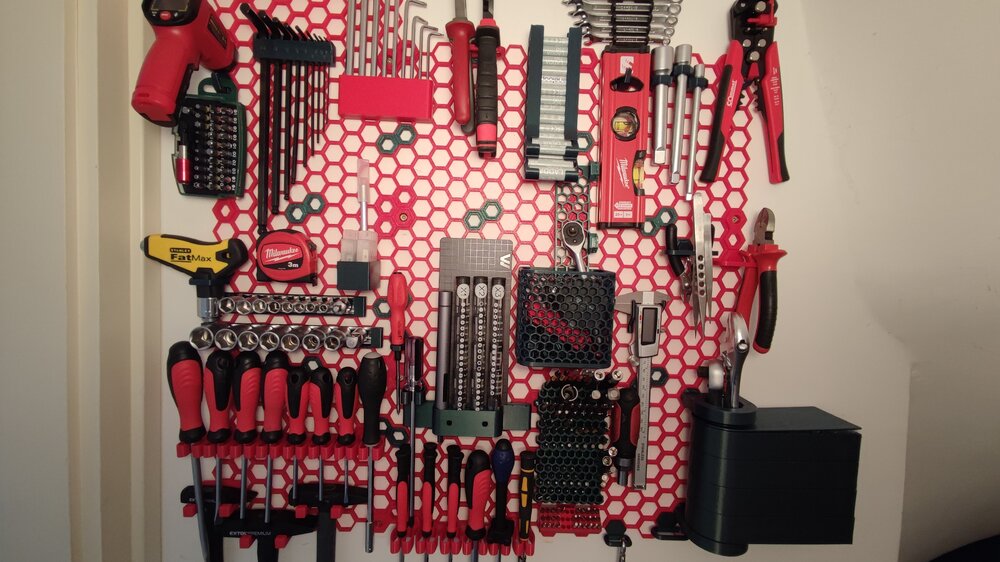
This was my very first time trying out PETG to print something that needs to be more durable than PLA. I suggested this Honeycomb Storage Wall project to my father and we aggreed to try it out with PETG. It went much easier than excpected. A little bit of stringing here and there, but the final result was good and worth it. Now we are thinking of printing another one for the garage wall as well :D I used CR-PETG for the red parts. Green one is from 3dk.berlin. After i ran out of both I started t
-
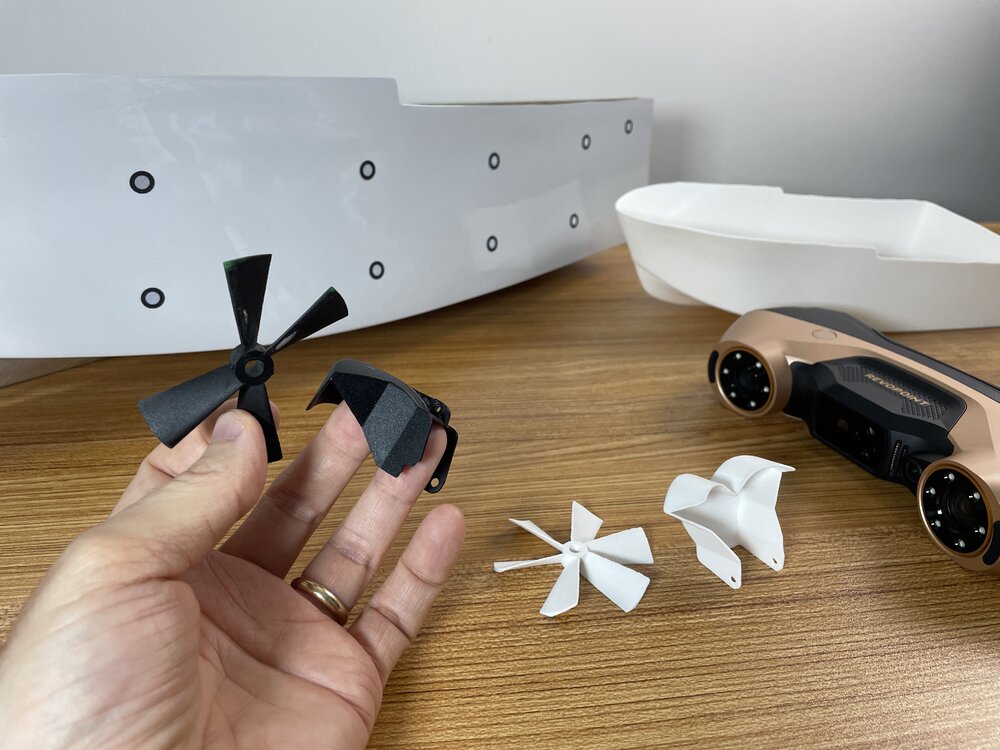
I had a blast 3D scanning and repairing RC boat parts with the @Revopoint3d MetroY Ultra. I think I’ve just unlocked Level 2 of 3D scanning… thanks to a few tricks. 😄 Full article next week.
-
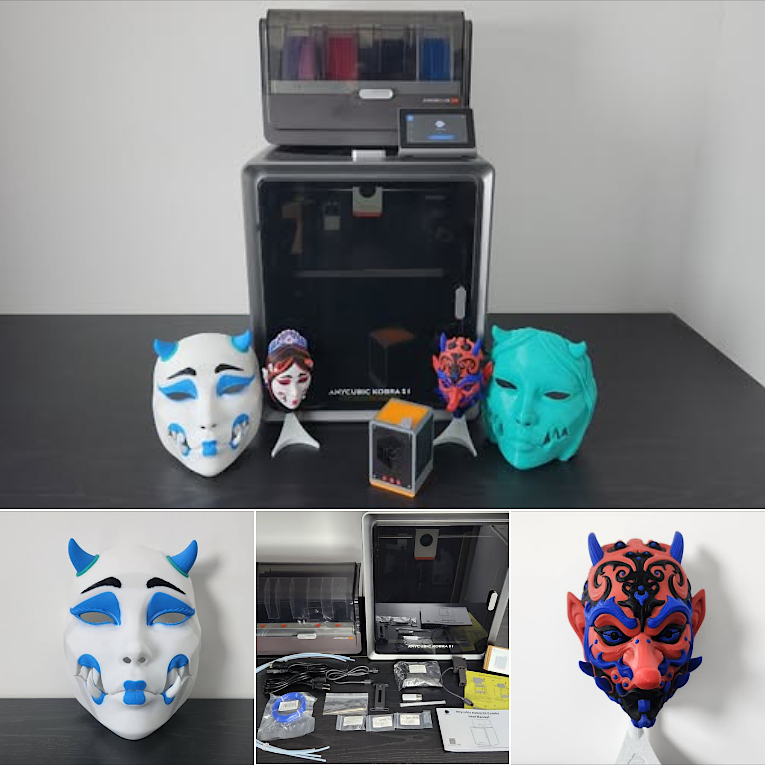
Unboxing, setup, and first prints with the new Anycubic Kobra S1 Combo. From multi-material masks to practical test prints. Featured: Pipe Cox's Masks Have you tried this machine or plan to? Share your own prints, setup experience, or ask a question below! 👉 Full review: https://3dwithus.com/anycubic-kobra-s1-combo-review-3d-printer-tests-tips-and-settings



Join the conversation
You can post now and register later. If you have an account, sign in now to post with your account.