


Tripo AI Discussion

Featured Replies
Topics
-
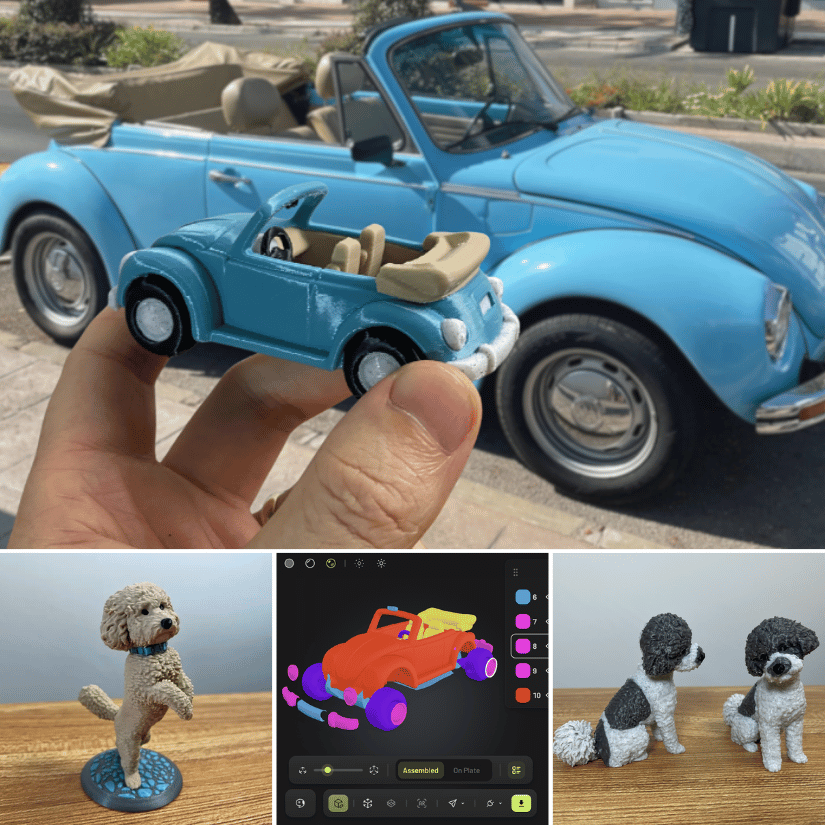
I’ve just finished a new hands-on test of Meshy AI, focusing specifically on how useful AI-generated models can be for actual 3D printing. For this round, I tested several very different workflows. Full hands-on review: https://3dwithus.com/meshy-ai-hands-on-review-photo-to-3d-printing I’m also interested to hear if anyone here has already experimented with AI-generated models for 3D printing. What worked well for you, and what still needed manual cleanup?
-
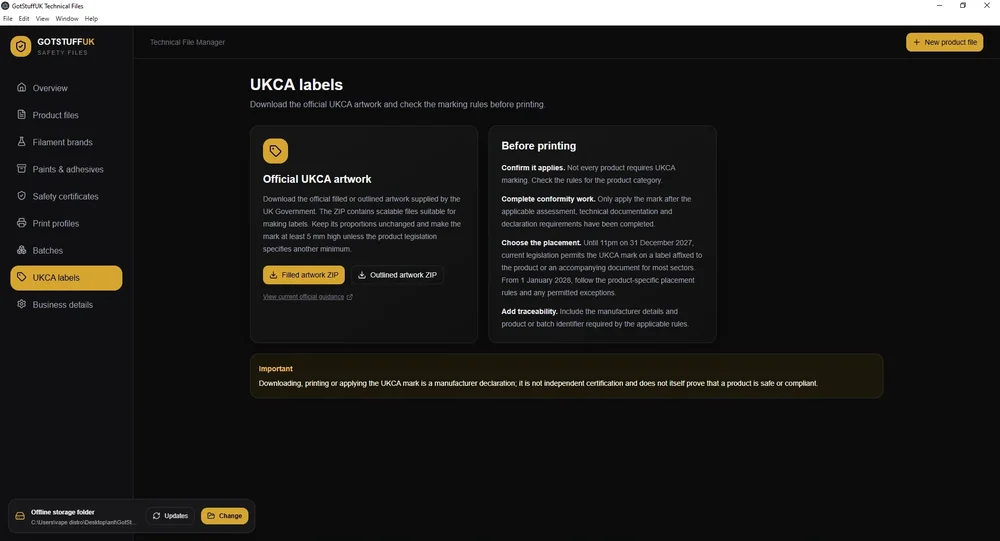
Hi all, a little introduction, i've been 3D printing for around 3 years now as a hobby but over the last 12 months turned this into a small business, As i did markets as well as online i was informed about the UKCA regulations, having looked into this further i seen that you have to have tech files for 3D printed products that are either Articulated or appeal to under 14 year olds. This kind of made me panic a bit thinking 95% of my products are aimed at adults, but some may appeal to under 14's
-
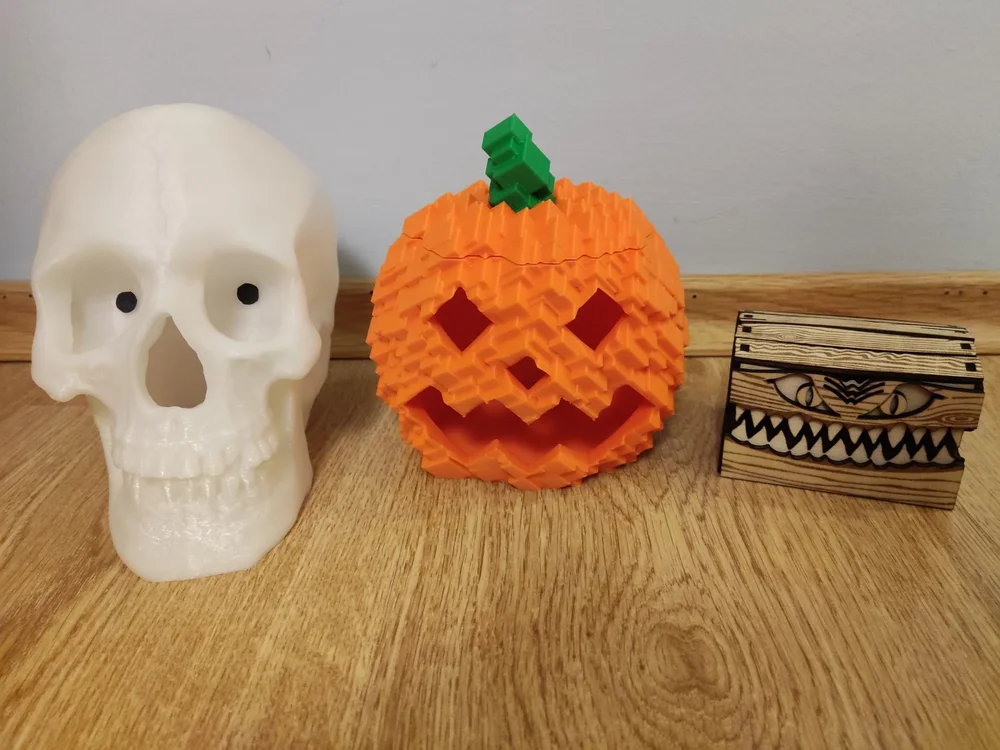
Having a 3D printer and a laser engraver really makes events like Halloween special. I had a blast making these projects and I wanted to share them with the community: Staring Skull with eyes that follow by me: I used two thin paper pieces for the eyes. I colored them black using a marker and attached them with Blu Tack. For the model, I used glow-in-the-dark PLA. Miniaturized Halloween candy box by @Laserjeffery: I used my Carverall X1Pro to make it out of basswood sheets. Glitch Pumpkin
-
Hello everyone, My name is Krzysiek Gorsiak and I’m from Poland. I’m a professional international truck driver working across Europe, an active firefighter with 19 years of service, and a former Army serviceman. I run a Polish project called Kierowca Wyklęty, focused on real everyday life for professional drivers, practical equipment, and long-term testing in actual working conditions. Modular 3D-Printed Truck Cabin System I am currently developing a modular equipment system for truck cabins, de
-
Client's Requirement: The customer required a fully customized trophy sculpture based on a reference design featuring two characters. In addition to the trophy image, the customer supplied photographs of two individuals whose faces needed to be accurately incorporated into the trophy characters. The key challenge was to translate real human facial characteristics onto stylized trophy forms while maintaining recognizability, aesthetic balance, and manufacturability. The customer also required a p




Account
Navigation
Search
Configure browser push notifications
Chrome (Android)
- Tap the lock icon next to the address bar.
- Tap Permissions → Notifications.
- Adjust your preference.
Chrome (Desktop)
- Click the padlock icon in the address bar.
- Select Site settings.
- Find Notifications and adjust your preference.
Safari (iOS 16.4+)
- Ensure the site is installed via Add to Home Screen.
- Open Settings App → Notifications.
- Find your app name and adjust your preference.
Safari (macOS)
- Go to Safari → Preferences.
- Click the Websites tab.
- Select Notifications in the sidebar.
- Find this website and adjust your preference.
Edge (Android)
- Tap the lock icon next to the address bar.
- Tap Permissions.
- Find Notifications and adjust your preference.
Edge (Desktop)
- Click the padlock icon in the address bar.
- Click Permissions for this site.
- Find Notifications and adjust your preference.
Firefox (Android)
- Go to Settings → Site permissions.
- Tap Notifications.
- Find this site in the list and adjust your preference.
Firefox (Desktop)
- Open Firefox Settings.
- Search for Notifications.
- Find this site in the list and adjust your preference.
Join the conversation
You can post now and register later. If you have an account, sign in now to post with your account.
Note: Your post will require moderator approval before it will be visible.