


Creality Sermoon P1 Discussion

Featured Replies
Topics
-
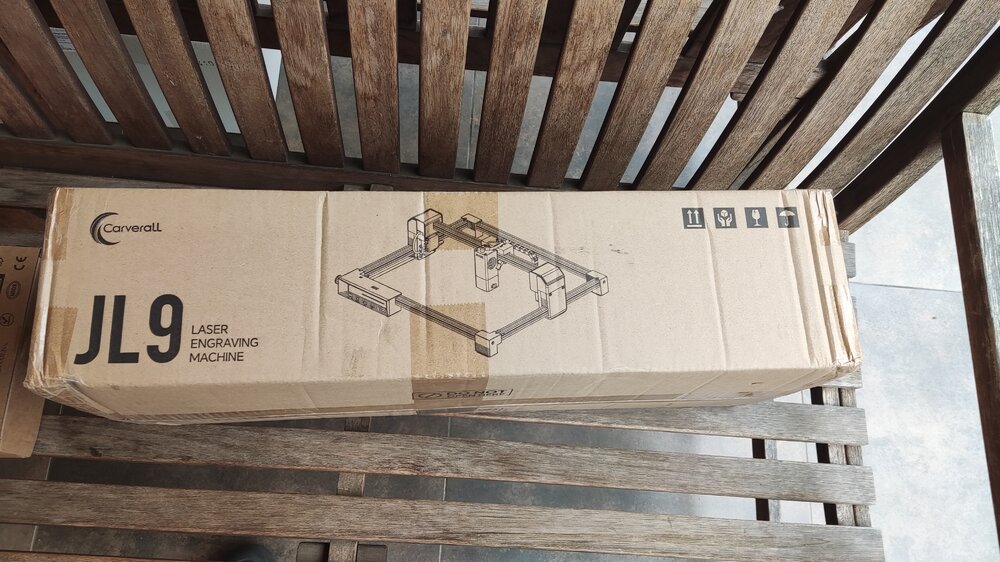
Just received these packages recently. Assembly is still in progress as I am waiting on some accessories and materials, but hopefully, the work can start soon! I am really excited to be part of this collab with 3DWithUs and Carverall!
-
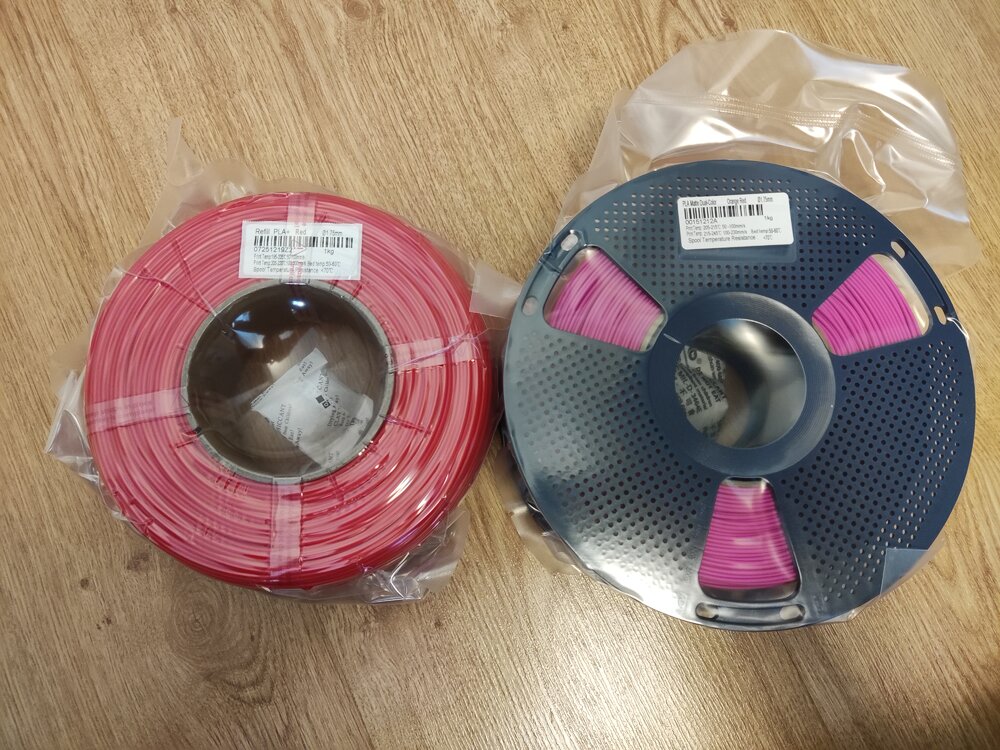
Giveaway filament arrived! I got: Refill PLA+ Red Matte Dual-Color Orange-Red Thanks you SUNLU and 3DWithUs! (I am starting to run out of storage space :D)
-
When working with 3D visualization and modeling software, I think the PC hardware can make a big difference, especially when handling complex models and scenes. I usually look at the CPU and GPU together rather than considering only one component. A system can have a powerful graphics card but still experience performance limitations if the processor cannot keep up. Before upgrading hardware, I also find it useful to check the CPU/GPU combination with a PC performance check to get an idea of whe
-
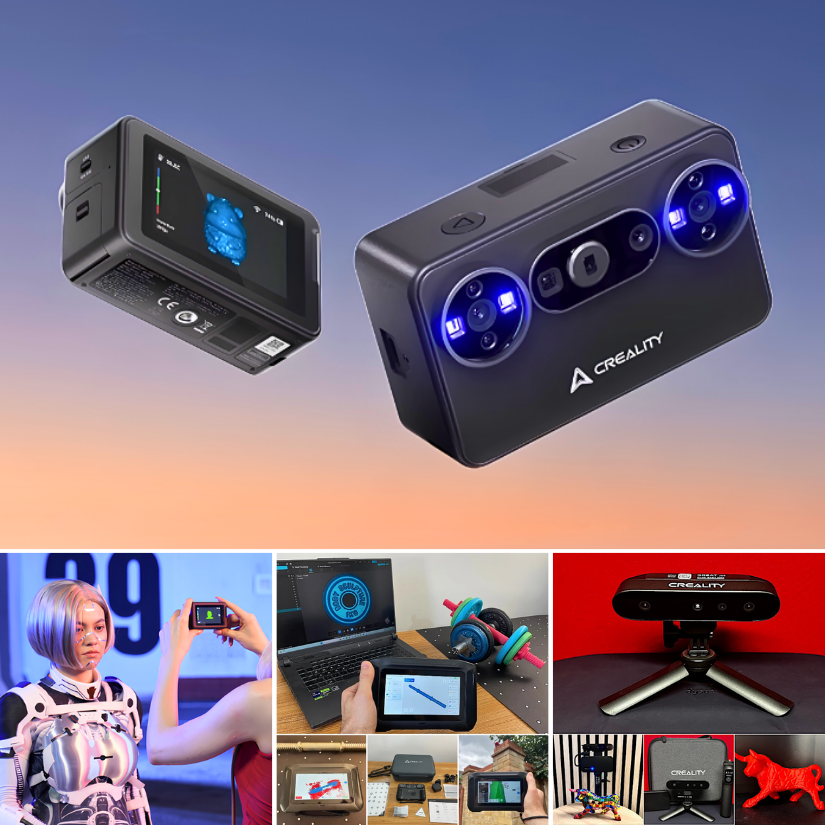
Creality’s 3D scanner lineup is interesting. From the tiny new Pika to the standalone Sermoon P1 and more. Still waiting for Pika to arrive. Here is the first look: https://3dwithus.com/creality-new-3d-scanners
-
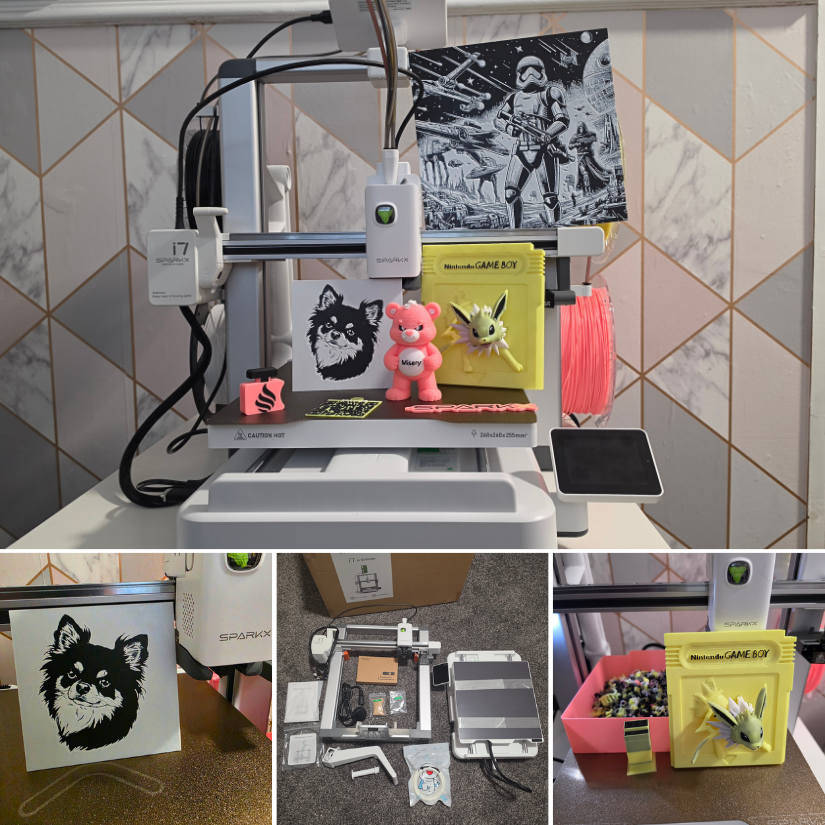
We’ve just published our hands-on review of the Creality SparkX i7 Nano Combo with the compact CFS Nano multicolor system. If you’re considering this setup, have questions about it, or already use one, share your thoughts and experiences here. https://3dwithus.com/creality-sparkx-i7-nano-cfs-nano-hands-on-review


Join the conversation
You can post now and register later. If you have an account, sign in now to post with your account.
Note: Your post will require moderator approval before it will be visible.