


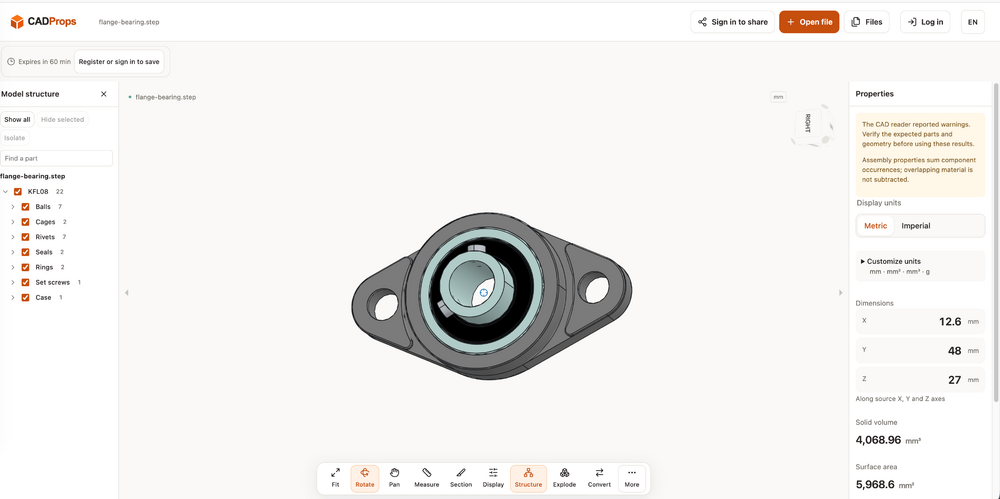
A browser-based way to inspect STEP and STL files before a project moves on

Featured Replies
Topics
-
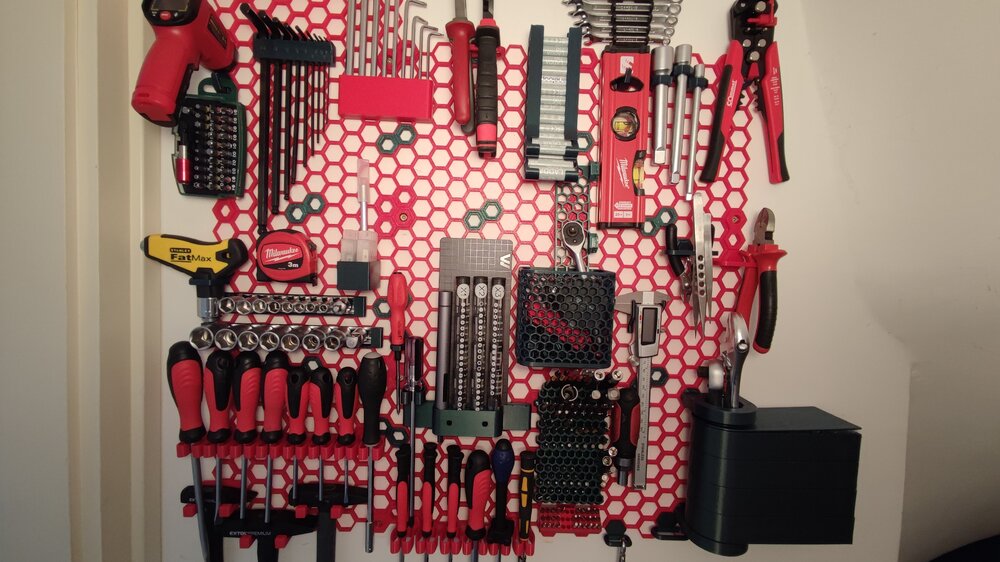
This was my very first time trying out PETG to print something that needs to be more durable than PLA. I suggested this Honeycomb Storage Wall project to my father and we aggreed to try it out with PETG. It went much easier than excpected. A little bit of stringing here and there, but the final result was good and worth it. Now we are thinking of printing another one for the garage wall as well :D I used CR-PETG for the red parts. Green one is from 3dk.berlin. After i ran out of both I started t
-
Hi everyone — we’re the team behind CADProps. We built it for those moments when someone sends you a CAD file and you want to inspect the model and check its dimensions without installing another desktop application. For example, you can open a STEP file, rotate the model, check its units and overall dimensions, and inspect geometry properties. CADProps also opens STL and other supported mesh formats, which can be useful when checking a model received for a 3D printing project. If you’d like to
-
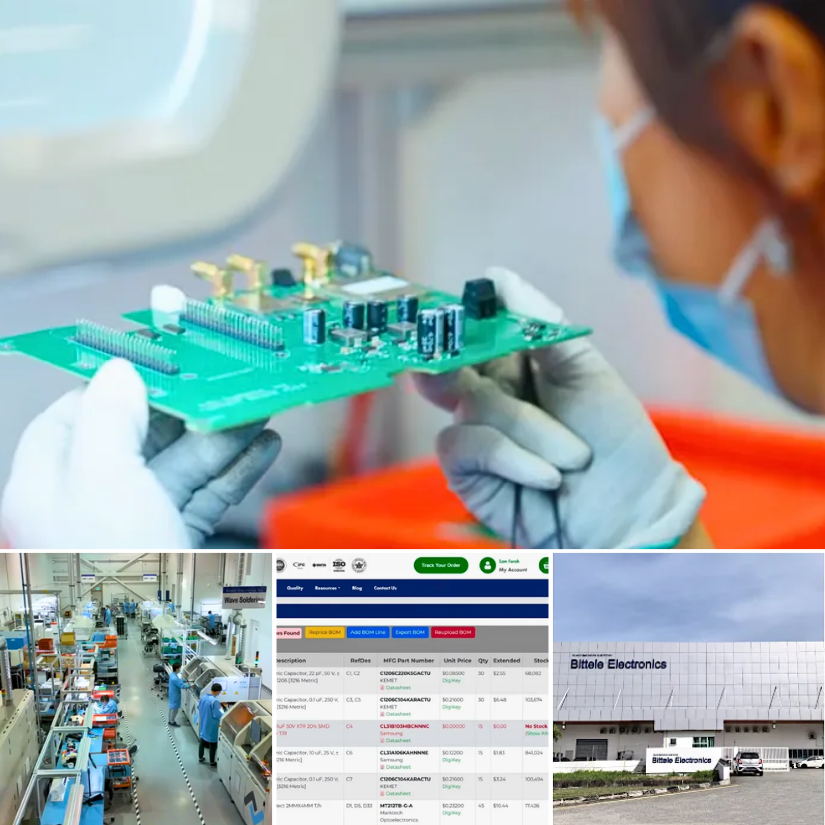
We’ve published an article about Bittele Electronics and turnkey PCB assembly services. The topic may be useful for anyone working on electronics projects, especially when moving from prototype boards to more organised production. Turnkey PCB assembly typically involves sending the design files and BOM (Bill of Materials), with the provider managing fabrication, component sourcing, assembly, inspection, and delivery. Full article: https://3dwithus.com/bittele-electronics-turnkey-pcb-assembly-ma
-
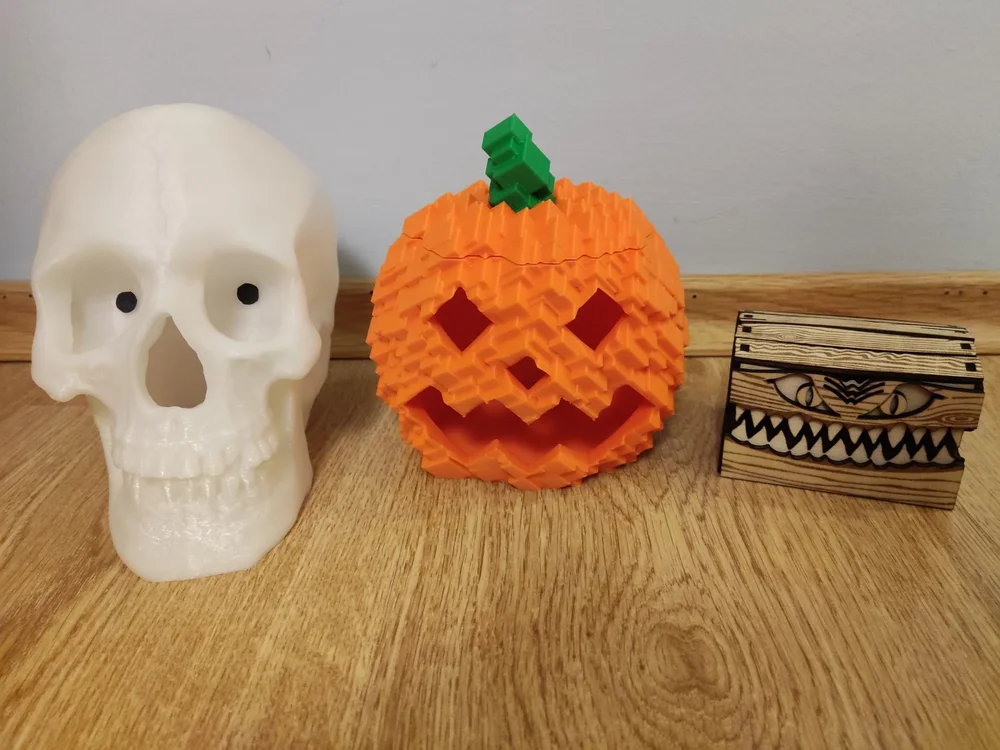
Having a 3D printer and a laser engraver really makes events like Halloween special. I had a blast making these projects and I wanted to share them with the community: Staring Skull with eyes that follow by me: I used two thin paper pieces for the eyes. I colored them black using a marker and attached them with Blu Tack. For the model, I used glow-in-the-dark PLA. Miniaturized Halloween candy box by @Laserjeffery: I used my Carverall X1Pro to make it out of basswood sheets. Glitch Pumpkin
-
Hello everyone, My name is Krzysiek Gorsiak and I’m from Poland. I’m a professional international truck driver working across Europe, an active firefighter with 19 years of service, and a former Army serviceman. I run a Polish project called Kierowca Wyklęty, focused on real everyday life for professional drivers, practical equipment, and long-term testing in actual working conditions. Modular 3D-Printed Truck Cabin System I am currently developing a modular equipment system for truck cabins, de



Join the conversation
You can post now and register later. If you have an account, sign in now to post with your account.
Note: Your post will require moderator approval before it will be visible.