


xTool M2 Discussion

Featured Replies
Topics
-
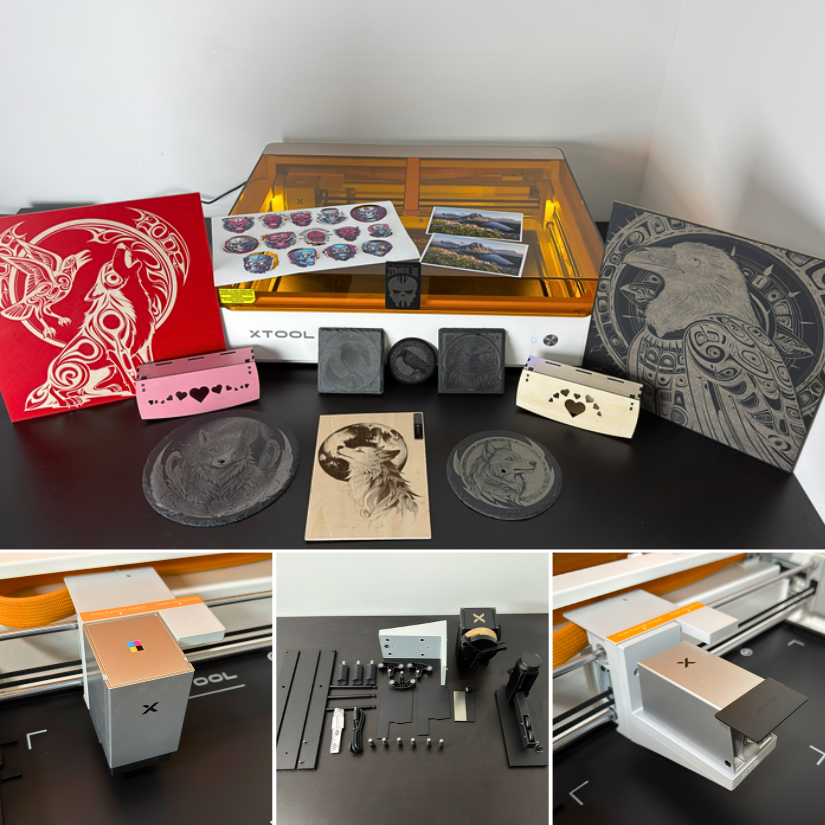
I've been testing the xTool M2, exploring its laser cutting, engraving, full-colour inkjet printing, and RA3 rotary attachment. I completed several projects using different materials, with some impressive results! Check out my full hands-on review, including test results, pros and cons: https://3dwithus.com/xtool-m2-review-laser-cutting-engraving-inkjet-printing Have any questions about the M2? Feel free to ask below!
-
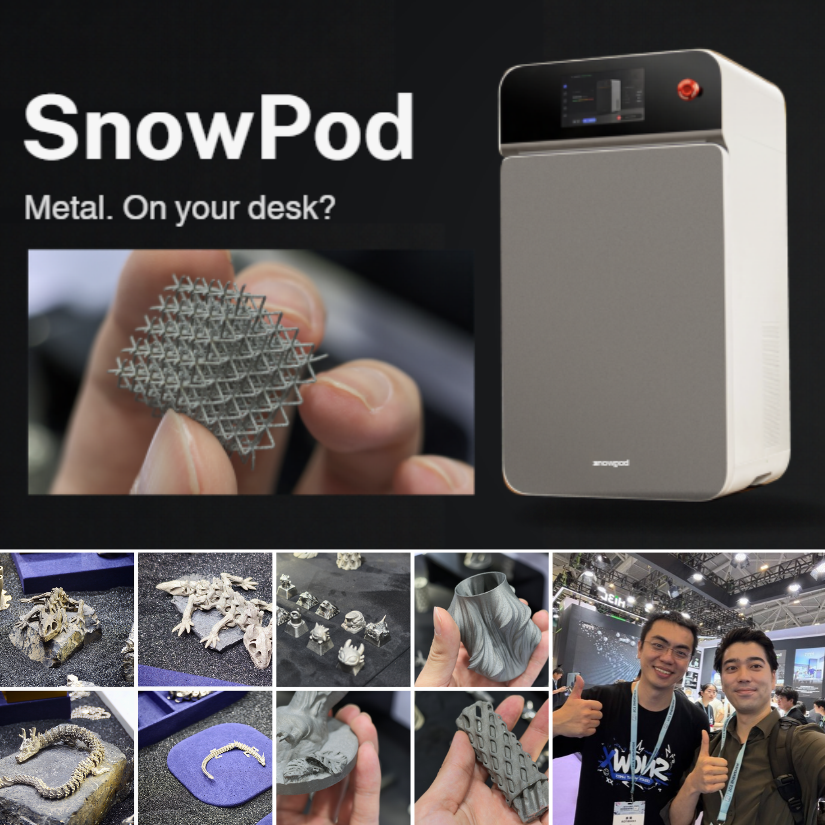
I had a hands-on look at the SnowX SnowPod desktop metal 3D printer at TCT Shenzhen, including the workflow, supports, powder handling, and sample prints. Full article and photos are linked below: https://3dwithus.com/snowx-snowpod-desktop-metal-3d-printer
-
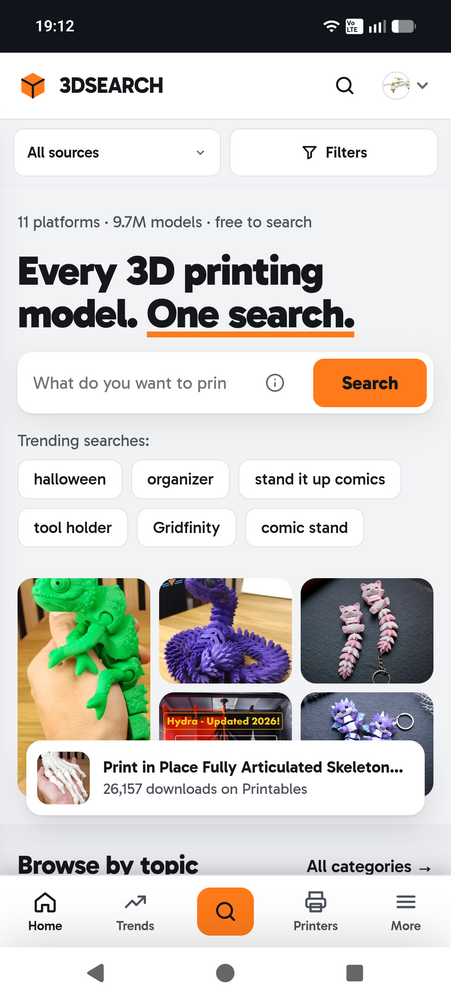
Hi everyone, I'm Chris from Austria. For a while now I've been working on a side project that came out of my own frustration. Whenever I looked for a model, I ended up with Thingiverse, Printables, MakerWorld and Cults open in different tabs, typing the same search four times. So I built 3DSEARCH, which searches all of them at once. It now covers almost 9.7 million models from 11 sites: MakerWorld, Thingiverse, Printables, Cults3D, Creality Cloud, Sketchfab, GrabCAD, Thangs, MakerOnline, MyMiniF
-
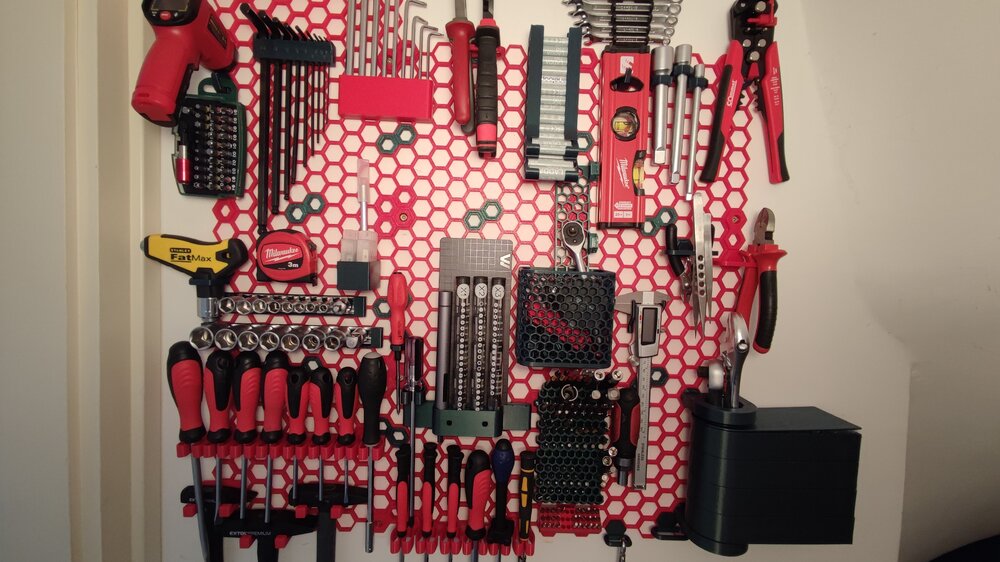
This was my very first time trying out PETG to print something that needs to be more durable than PLA. I suggested this Honeycomb Storage Wall project to my father and we aggreed to try it out with PETG. It went much easier than excpected. A little bit of stringing here and there, but the final result was good and worth it. Now we are thinking of printing another one for the garage wall as well :D I used CR-PETG for the red parts. Green one is from 3dk.berlin. After i ran out of both I started t
-
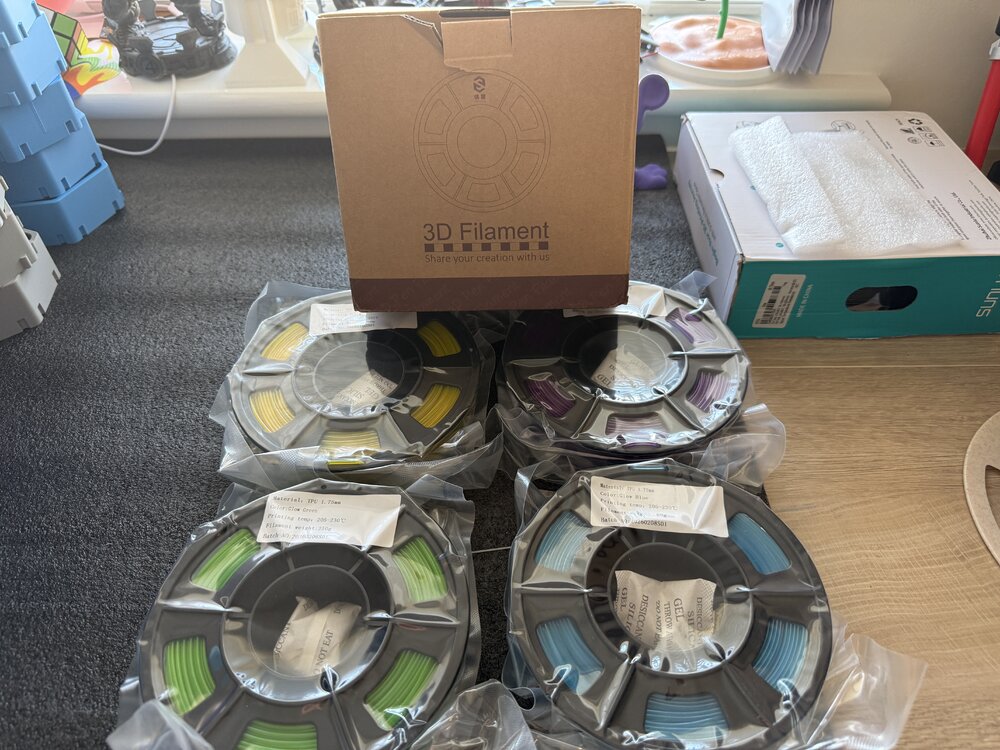
4 250 gram Yousu glow in the dark TPU been sent to try ( yellow purple green blue) will post prints after I’ve tried it. Should be interesting to try print with glow TPU.



Account
Navigation
Search
Configure browser push notifications
Chrome (Android)
- Tap the lock icon next to the address bar.
- Tap Permissions → Notifications.
- Adjust your preference.
Chrome (Desktop)
- Click the padlock icon in the address bar.
- Select Site settings.
- Find Notifications and adjust your preference.
Safari (iOS 16.4+)
- Ensure the site is installed via Add to Home Screen.
- Open Settings App → Notifications.
- Find your app name and adjust your preference.
Safari (macOS)
- Go to Safari → Preferences.
- Click the Websites tab.
- Select Notifications in the sidebar.
- Find this website and adjust your preference.
Edge (Android)
- Tap the lock icon next to the address bar.
- Tap Permissions.
- Find Notifications and adjust your preference.
Edge (Desktop)
- Click the padlock icon in the address bar.
- Click Permissions for this site.
- Find Notifications and adjust your preference.
Firefox (Android)
- Go to Settings → Site permissions.
- Tap Notifications.
- Find this site in the list and adjust your preference.
Firefox (Desktop)
- Open Firefox Settings.
- Search for Notifications.
- Find this site in the list and adjust your preference.
Join the conversation
You can post now and register later. If you have an account, sign in now to post with your account.
Note: Your post will require moderator approval before it will be visible.