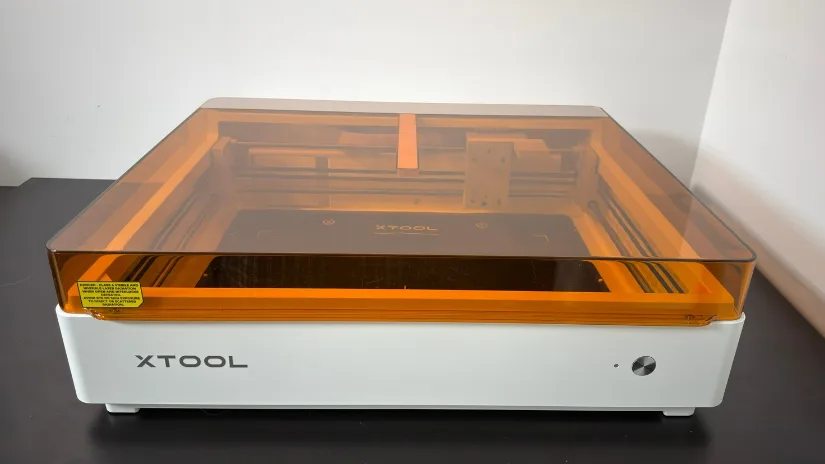
xTool has become a leading name in desktop laser cutting and engraving, offering versatile machines with user-friendly software. The xTool M2 combines a diode laser with optional full-colour inkjet printing, allowing users to cut, engrave, and print with one machine. Unlike the previous M1 Ultra, it removes the blade-cutting tools for a simpler, more affordable design.
In this hands-on review, I’ll explore the M2’s setup, design, software, and capabilities through a series of tests. I’ll also test the optional RA3 rotary attachment and inkjet module before sharing my conclusions, along with the pros and cons at the end of the article.
Disclaimer: Laser cutting and engraving may be hazardous if improperly operated. Please make sure to follow the safety guidelines such as wearing eye-protective goggles and using the machine enclosure while operating.
Table of Contents (Jump to a Section)
Where to Buy the xTool M2
Price: $1,100-1,800
Compare the Prices & Bundles:
Official Website | Amazon
What’s in the Box
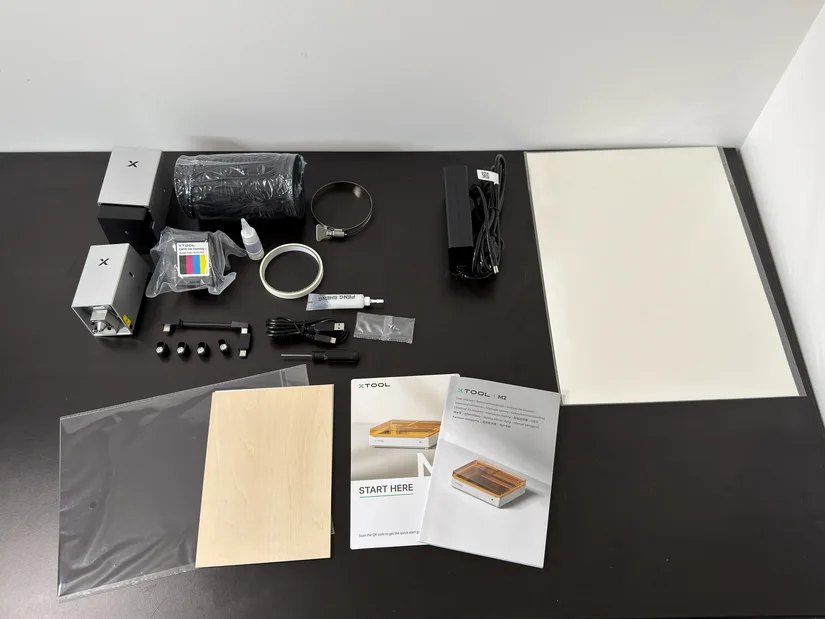
The xTool M2 standalone package includes the machine, laser module, module connection cable, power adapter and cable, USB cable and adapter, smoke exhaust pipe, clamp, grease, material pack, four magnetic fixtures, hex screwdriver, masking tape, two M3×6 screws, safety instructions, and an instruction card.
©3DWithUs – Photo: Will Zoobkoff
Please note that the product may be slightly revised over time, with additional add-ons or features introduced. Visit the official product page for the latest product contents and specifications.
Specifications
– Functions: Laser cutting, engraving and full-colour inkjet printing
– Laser options: 10W or 20W blue-diode laser; optional 3W infrared module
– Printing: CMYK inkjet with true black
– Laser work area: 426 × 320 mm
– Inkjet work area: 300 × 294 mm
– Maximum processing speed: 600 mm/s
– Camera system: 5MP close-view and 16MP distance-view cameras
– Laser spot size: 0.06 × 0.04 mm (10W); 0.08 × 0.06 mm (20W)
– Maximum single-pass cutting: Up to 8 mm basswood with 10W; up to 10 mm with 20W
– Rotary capacity: Objects measuring 0–100 mm in diameter without a riser base
– Air assist: Adjustable air pump built into the machine
– Software: xTool Studio
– Supported files: SVG, DXF, JPG, JPEG, PNG, BMP, TIF, PDF and PDS
– Safety: Fully enclosed Class 1 laser
– Machine dimensions: 610 × 569 × 180 mm
– Weight: 12.3 kg
Setup and Design
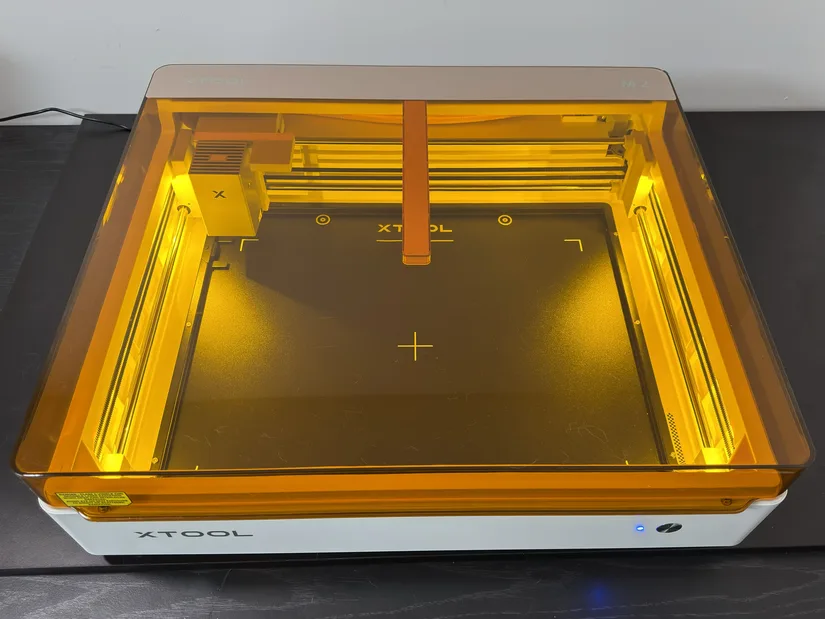
Setting up the xTool M2 is quick and straightforward, with only a few steps required before it is ready to use. After removing the protective foam and accessories from inside the machine, apply the supplied grease to the front and rear linear shafts, attach the exhaust hose, and install the selected laser or inkjet module.
©3DWithUs – Photo: Will Zoobkoff
The module connects with a single cable, while the magnetic mounting system makes swapping tool heads simple. From there, connect the power and USB cables, install xTool Studio, and follow the on-screen prompts to connect the machine and complete any available updates. The entire process is easy to follow and can be completed in a relatively short amount of time. Additional setup instructions, operating guides, maintenance information, and troubleshooting resources are available on the xTool M2 Wiki and Support page.
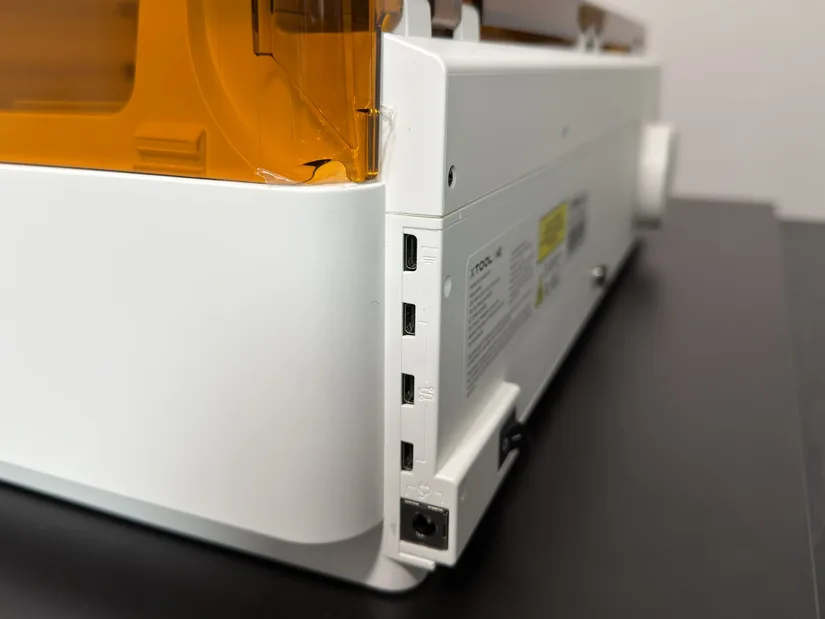
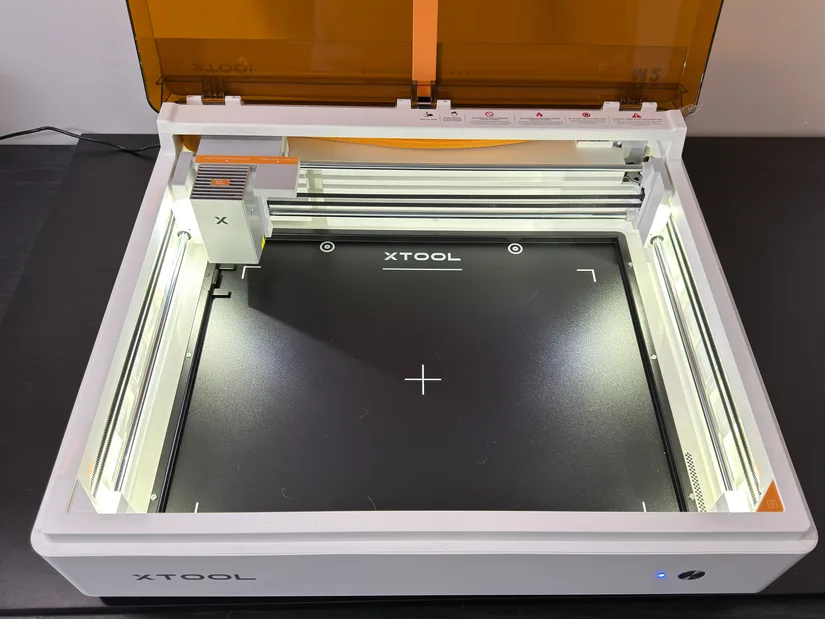
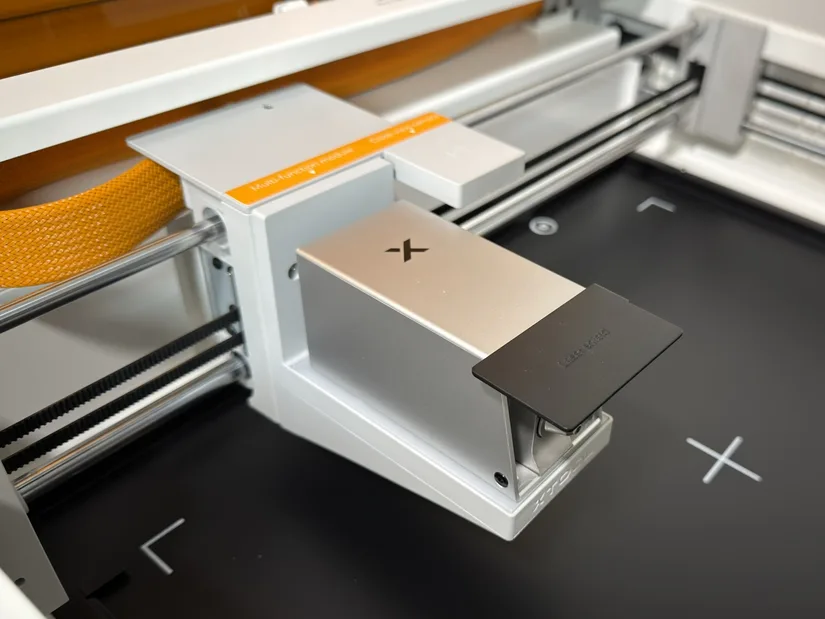
The xTool M2 features a compact, fully enclosed design with several improvements that make it easier and more convenient to use. The interchangeable laser and inkjet modules attach to the carriage magnetically, allowing them to be installed or swapped without tools. The air-assist pump is now built directly into the machine, eliminating the separate external pump required with the previous M1 Ultra and reducing the number of accessories and cables around the workspace.
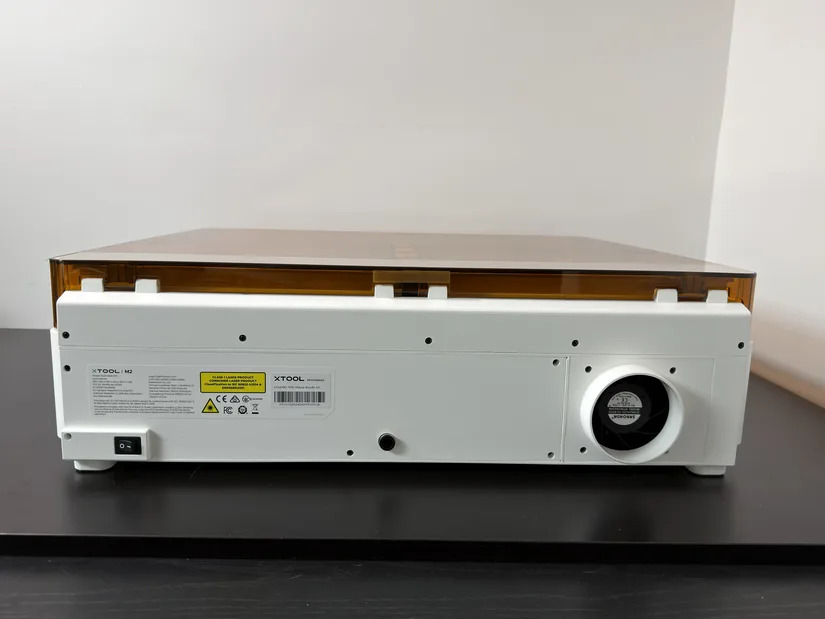
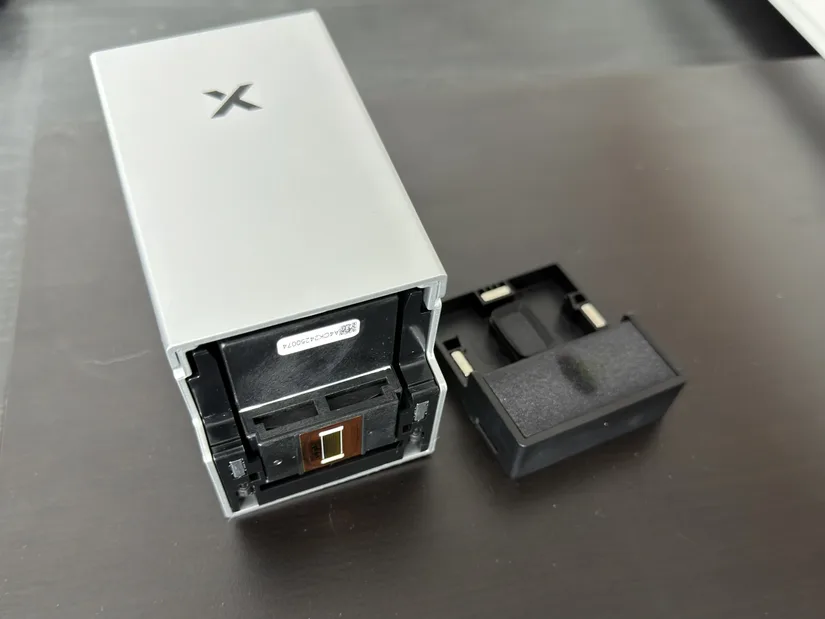
Rotary engraving also uses a unique horizontal setup that turns the laser module on its side, allowing the M2 to engrave tumblers and other objects measuring up to 100 mm in diameter without requiring a riser base. The updated inkjet module features an improved moisture sponge that helps prevent the print head from drying out, along with a cleaning sponge used before each print to ensure the nozzles are clean and the print head is ready.
©3DWithUs – Print and Photo: Will Zoobkoff
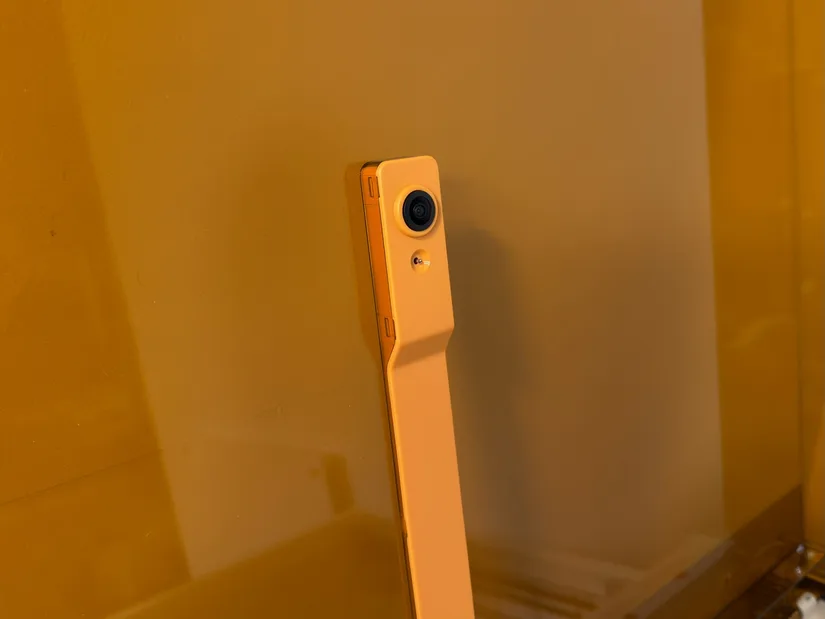
A dual-camera system, consisting of a distance-view camera and a close-view camera, provides a live view of the work area and helps users accurately position designs and cutting lines on their materials. Together, these changes simplify the overall workflow and make alignment, maintenance, and setup considerably easier for the end user.
Laser Module
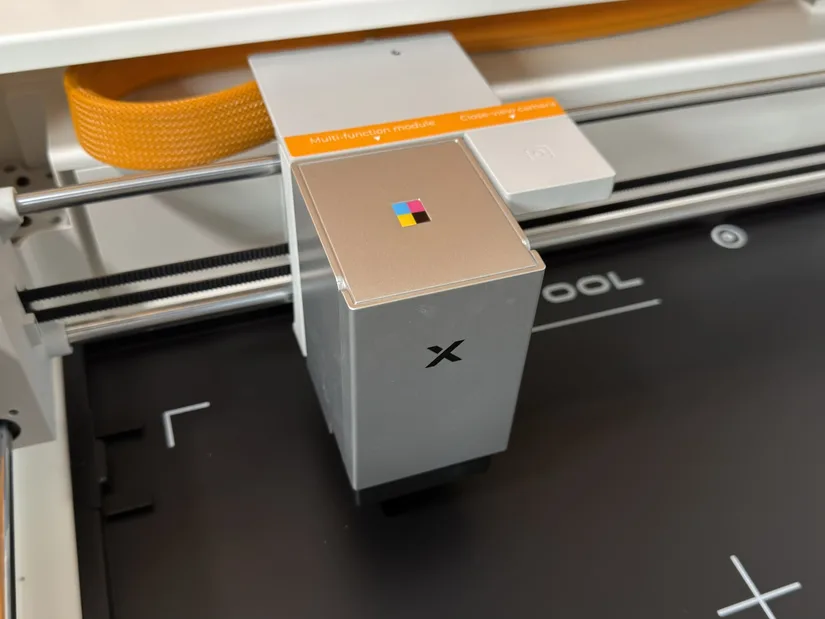
The xTool M2 is available with either a 10W or 20W blue-diode laser module, while an optional 3W infrared module expands its engraving capabilities to additional metals and plastics. The 10W module is well suited to detailed engraving and lighter cutting, while the 20W option provides additional power for cutting thicker materials more efficiently. Each module attaches securely to the carriage using magnets and connects to the machine with a single cable. This tool-free system makes installation simple and allows users to quickly change modules when moving between different materials or types of projects.
©3DWithUs – Print and Photo: Will Zoobkoff
Inkjet Module
The optional inkjet module adds full-colour printing to the M2 and uses an improved four-colour CMYK cartridge with dedicated cyan, magenta, yellow, and true black inks. This produces more accurate colours, stronger contrast, and cleaner blacks than a cartridge that creates black by combining the other colours. The module can print directly onto materials such as paper, wood, fabric, and other compatible surfaces, and it works with the laser to complete aligned print-and-cut projects within the same machine. Like the laser modules, it attaches magnetically and uses a simple cable connection, making it quick to install or remove. The updated moisture and cleaning sponges also help protect and prepare the print head, reducing maintenance and helping produce consistent results.
RA3 Rotary Attachment (Optional)
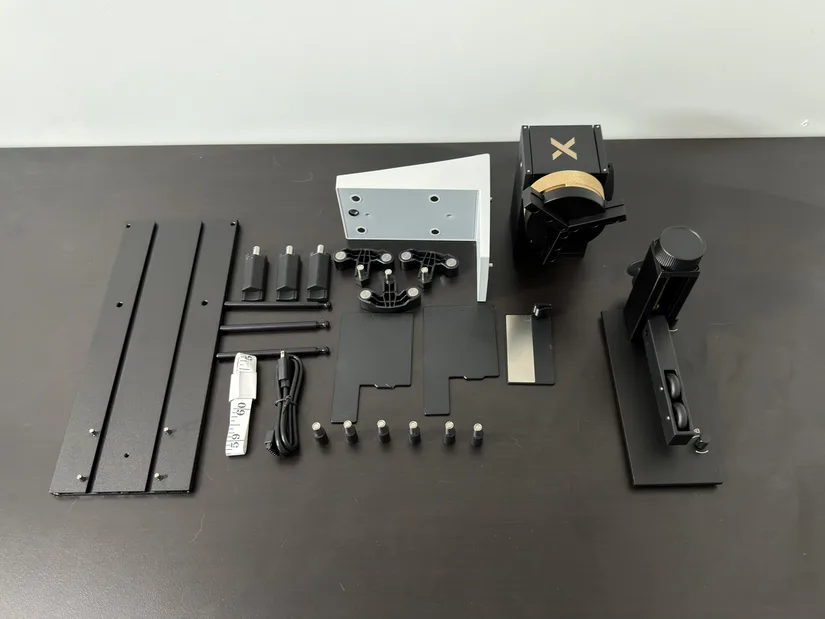
The optional xTool RA3 Lite basic kit expands the M2’s capabilities to engrave cylindrical and rounded objects such as tumblers, mugs, rings, ornaments, and spheres. Unlike conventional rotary setups that require a riser base, the M2 uses a horizontal laser holder that turns the laser module on its side and directs the beam toward the rotary attachment.
©3DWithUs – Print and Photo: Will Zoobkoff
The RA3 Lite includes interchangeable jaws for securing objects of different shapes and diameters, along with supports to help keep longer items level while they rotate. When engraving with the blue diode laser, use caution because the required laser shield may contact the rotary jaws. Whenever possible, secure the object using the holder on the inside brim or inner edge of the object to help keep the jaws clear of the shield. For setup and operating details, see the RA3 Standard Guide in the M2 Wiki. The RA3 Lite connects directly to the M2, and xTool Studio provides a live rotary preview to help position and wrap designs accurately before engraving. This setup is compact, easy to install, and allows objects measuring up to 100 mm in diameter to be engraved without increasing the machine’s overall height.
Software
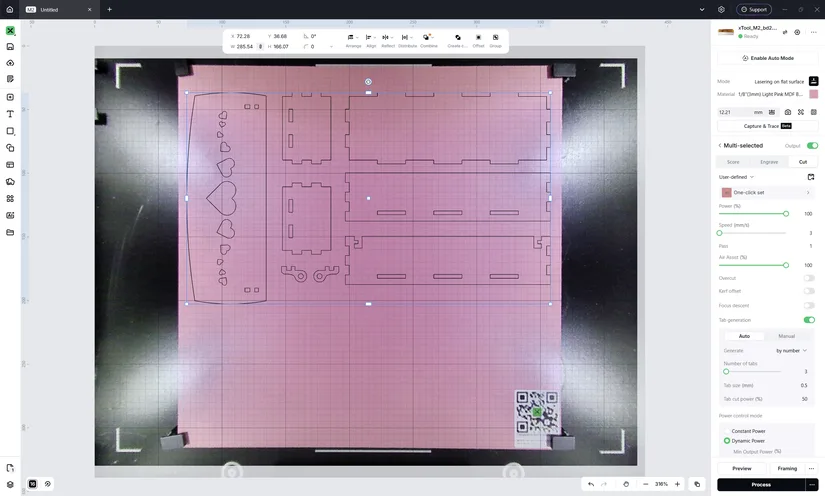
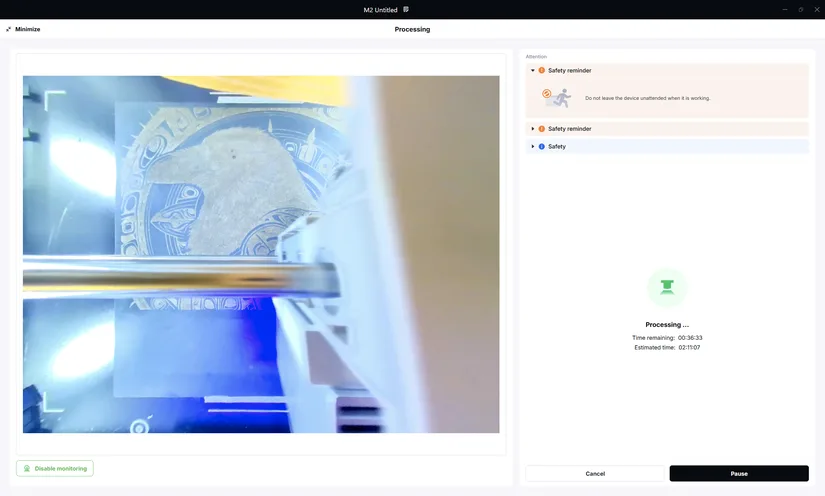
The new xTool Studio software has a clean and simple layout that is easy to navigate, even for users with limited experience. The main design tools, device controls, camera view, and processing settings are clearly organized, making it easy to import or create a design, position it on the material, and prepare it for printing, cutting, or engraving.
©3DWithUs – Print and Photo: Will Zoobkoff
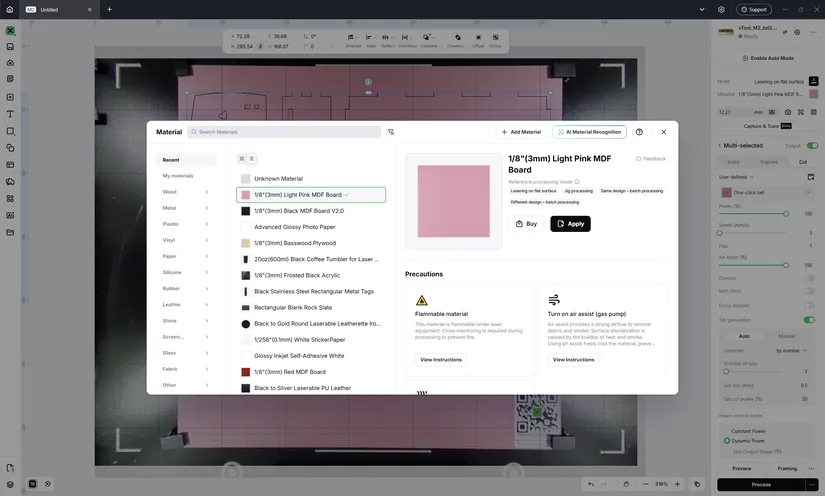
One of the software’s strongest features is its extensive material library, which includes more than 1,300 materials and thousands of preloaded parameter combinations. Users can select their material and begin with recommended settings for laser cutting or engraving instead of determining the power, speed, and number of passes from scratch.
xTool has also improved the software’s AI tools and design-generation capabilities. Users can generate artwork and project ideas from text prompts, refine existing images, remove backgrounds, trace edges, optimize images for engraving, and apply different visual styles without moving between multiple programs. These tools can help turn an initial idea into a usable design more quickly, especially for users who have limited graphic-design experience. The material presets and AI-assisted design tools can still be adjusted when needed, but they provide a useful starting point that simplifies the workflow and makes both the software and the M2 much easier for the end user to operate.
©3DWithUs – Print and Photo: Will Zoobkoff
Another useful resource is Atomm, xTool’s online design and maker community. It offers a growing collection of ready-to-use laser cutting and engraving projects, downloadable designs, templates, and creative inspiration shared by other makers. Atomm also features AI-powered tools for generating artwork, converting images into vectors, and creating custom projects. For beginners especially, it’s a great place to find ideas and designs to use with the M2 and xTool Studio.
Hands-On Testing and Results
For each test, I selected the material from xTool Studio’s material library and began with the recommended cutting, engraving, or printing settings provided by xTool. Where adjustments to power, speed, passes, or other parameters were required, I have noted those changes with the corresponding project. I also used the M2’s automatic measurement system to determine the correct distance from the module to the material. The dual-camera system was used to position and align each design, with the close-view camera used whenever additional accuracy is helpful.
Engraving on Wood
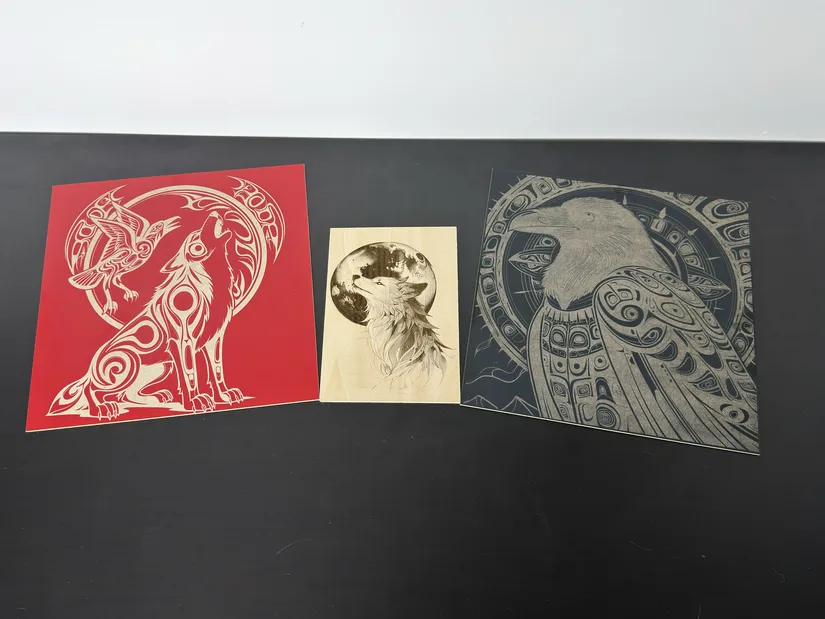
For the first round of testing, I completed three engravings: two on coloured MDF and one on regular basswood. I used the recommended settings from the xTool material library as a starting point for each test.
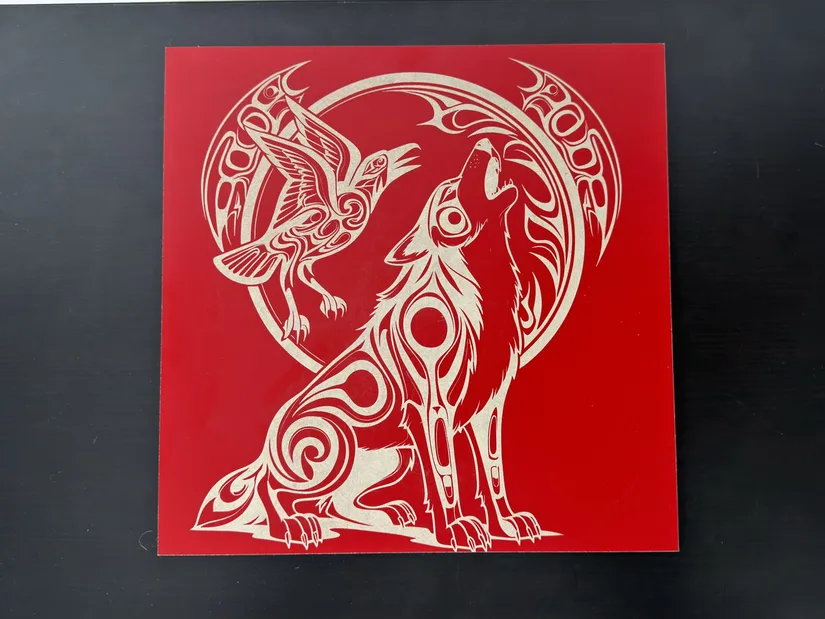
For the coloured MDF, xTool recommends 35% power. I increased this to 45% to ensure the laser passed completely through the coloured surface and exposed the lighter MDF core underneath. Both designs were engraved at 100 lines per centimetre.
©3DWithUs – Print and Photo: Will Zoobkoff
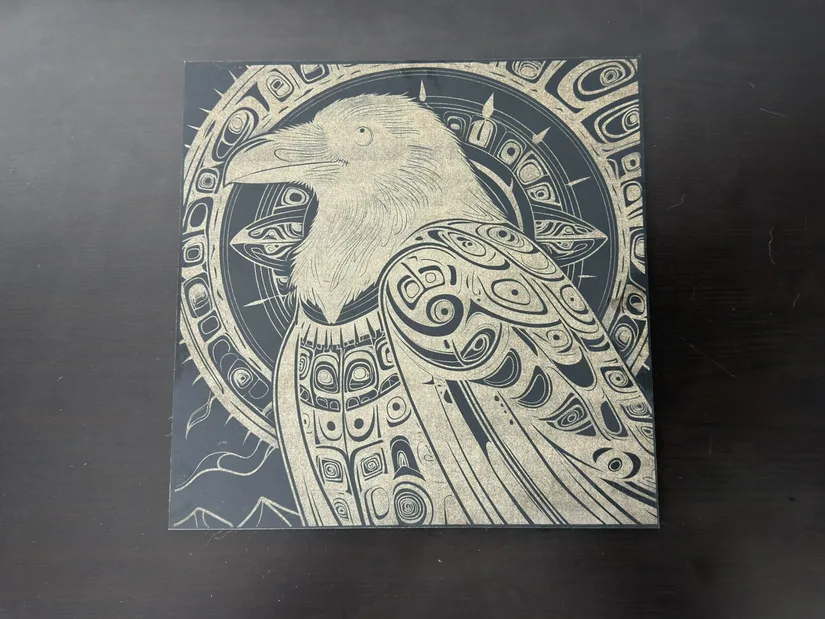
The first test was a raven and wolf design I created and engraved on red MDF. The additional power exposed the lighter core cleanly, producing excellent contrast between the red surface and the engraved design. I then engraved another original raven design on black MDF. The result was not quite as clean because some of the black colour bled into the lighter core. Even so, the engraving turned out very well, with sharp, clearly defined edges that make the design stand out. Each of the MDF designs took just over 2 hours to complete.
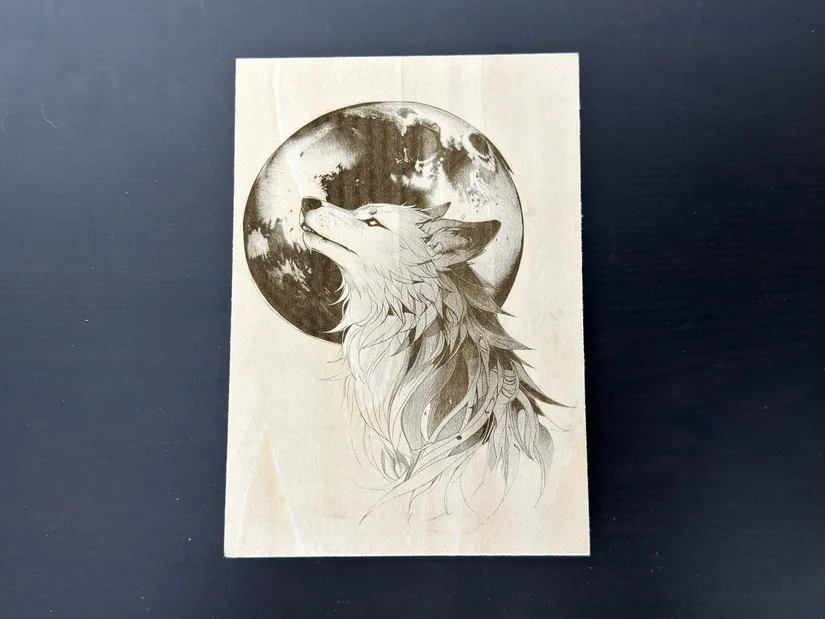
For the basswood test, I used the recommended settings from the xTool material library without making any adjustments. The design came out clean and sharp, with clearly defined details that stand out well against the natural wood. It is another fantastic finished piece and a good example of the clean engraving quality possible with the M2. This engraving took 26 minutes to complete, highlighting the M2’s speed even with the lower-powered 10W laser module.
©3DWithUs – Print and Photo: Will Zoobkoff
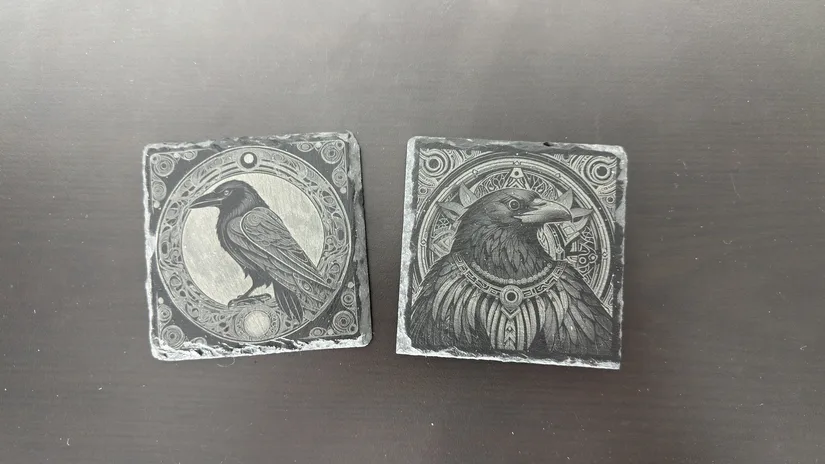
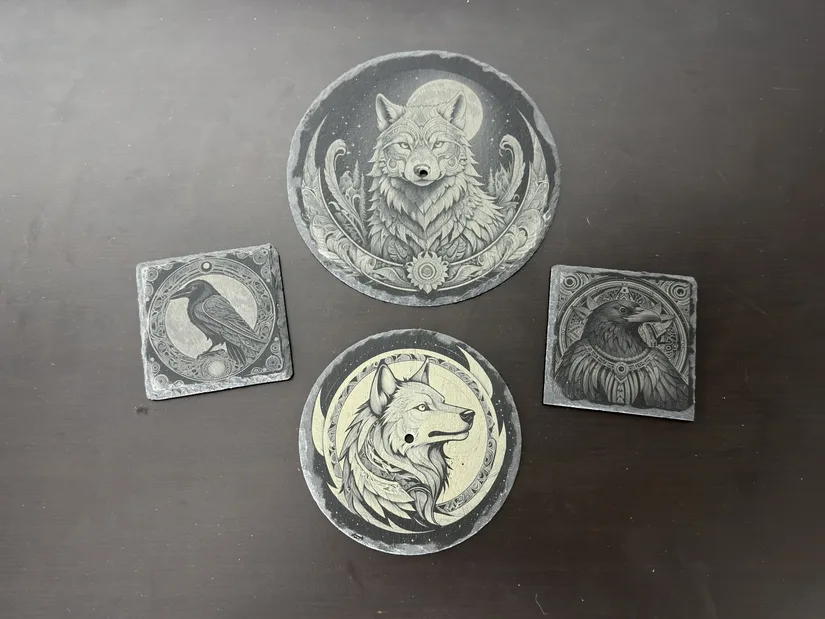
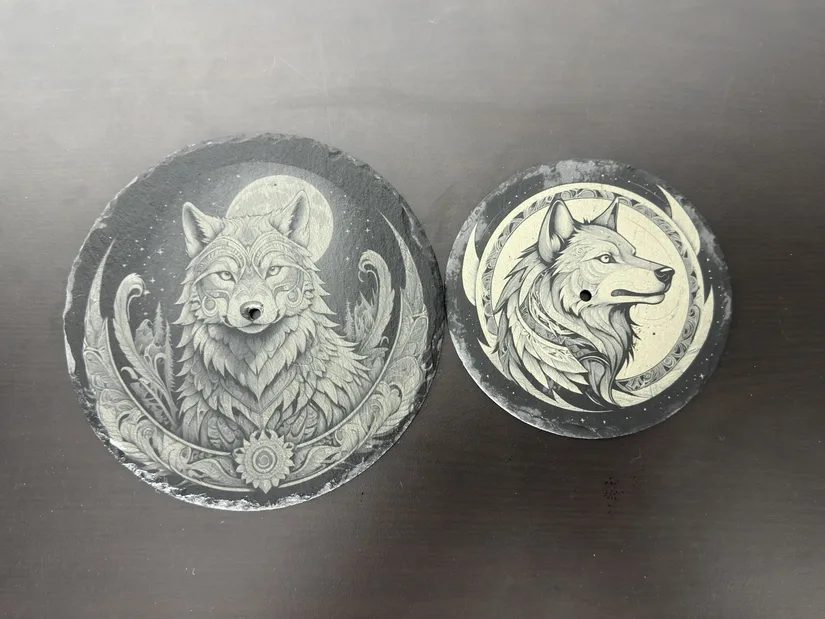
Additional Slate Engraving Examples
Will also supplied photographs of several engraved slate pieces featuring raven and wolf designs. These additional examples are shown below; the accompanying draft does not specify the processing settings or timings for them.
©3DWithUs – Print and Photo: Will Zoobkoff
Leather Patch Engraving
Next, I tested a couple of leather patches that reveal a different colour underneath when engraved. xTool offers several colours and styles of these patches through its online material store. Once again, I used the recommended settings from the xTool material library.
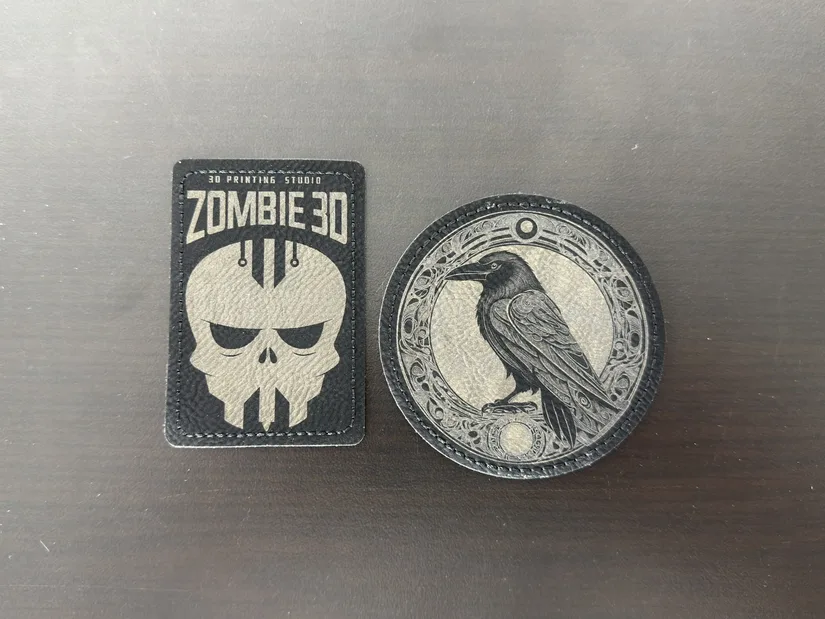
For the first patch, I engraved my studio logo. On the second, I used an original raven design that I normally use for embossing. This was the original image before it was converted into a depth map, and I was surprised by how well it transferred to the leather patch. I was unsure whether the finer details would remain visible, but the engraving captured them cleanly, and I was very pleased with the final result.
Wood Cutting
For the cutting tests, I used 3 mm basswood and pink MDF to create two small hinged storage boxes with heart designs on the lids. Each box took approximately 16 minutes to cut.
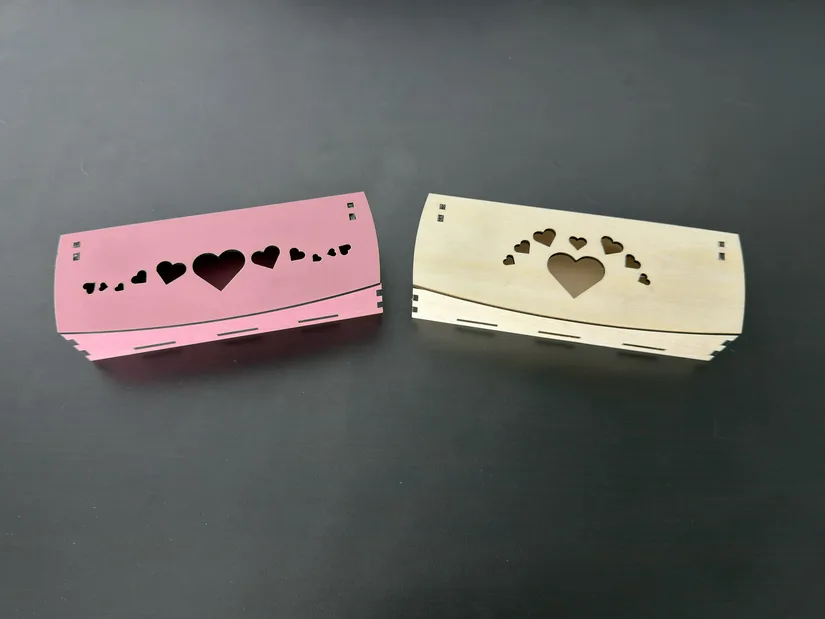
I used the magnetic stand clips to raise the materials above the bed and help ensure clean cuts. I also enabled tabs to prevent the finished pieces from falling through the supports during cutting, where they could potentially be struck by the laser as the remaining parts were cut. I set the software to add three tabs to each piece and reduced the tab-cutting power to 50%, making the parts easier to remove afterward.
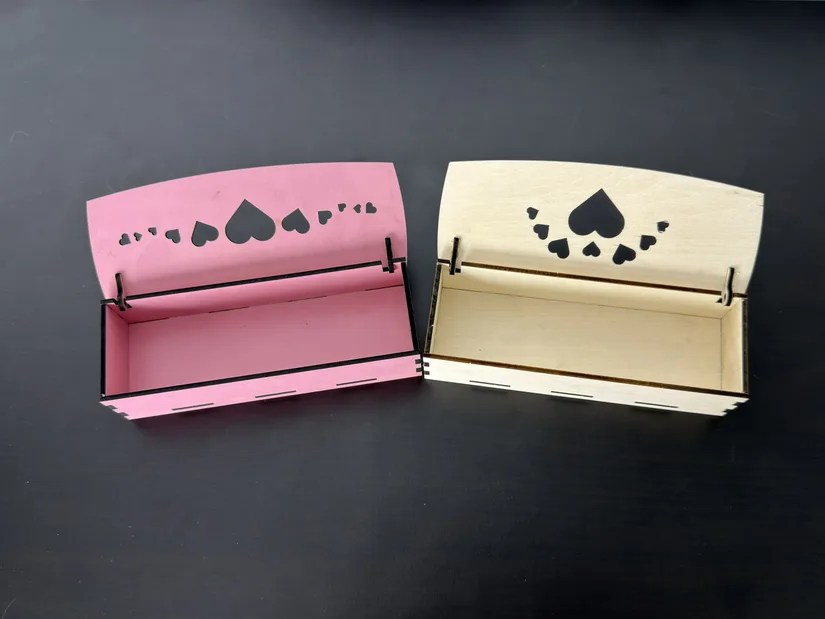
Both boxes turned out fantastic, with clean, well-defined edges and no visible singeing around any of the cuts.
Anodized Pendant
I also engraved an anodized pendant. The diode laser can be used for some jewellery projects, provided the surface is anodized. These small pieces are excellent for personalized gifts because they are quick to engrave and can produce impressive results.
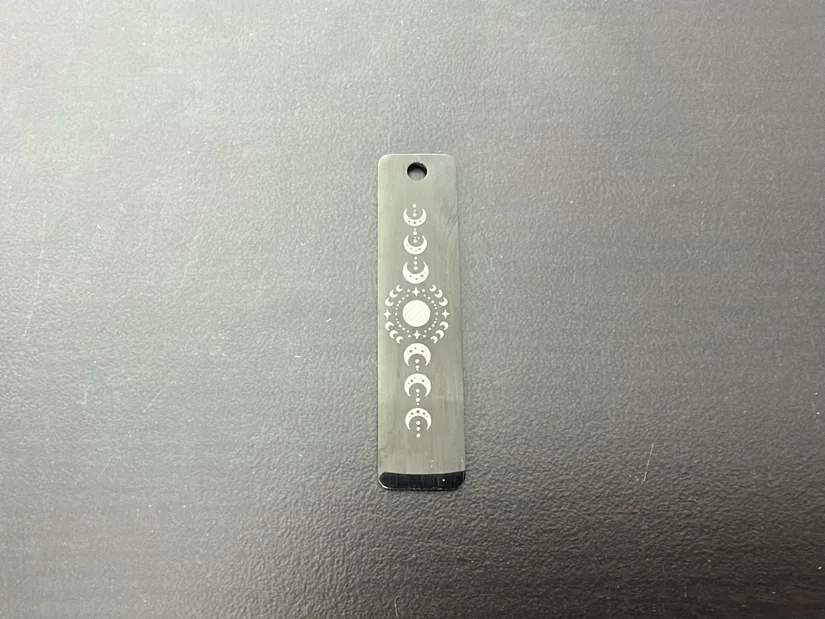
I used the recommended settings from the xTool material library but increased the power by 10% to ensure the coating was completely removed. The moon design came out clean and well defined, with the exposed metal creating strong contrast against the black surface of the pendant. The entire engraving took approximately 15 minutes to complete.
Tumbler Engraving with RA3
Using the RA3 Lite with the M2 is slightly different from a conventional rotary setup. The laser module is mounted horizontally, while the RA3 is positioned in the bottom-right corner of the machine using spacers to ensure proper alignment. Distance measurement is also handled differently. After positioning the laser over the highest point of the tumbler, the automatic measurement process first touches the RA3 to establish a base measurement and then touches the object to determine the correct engraving distance.
©3DWithUs – Print and Photo: Will Zoobkoff
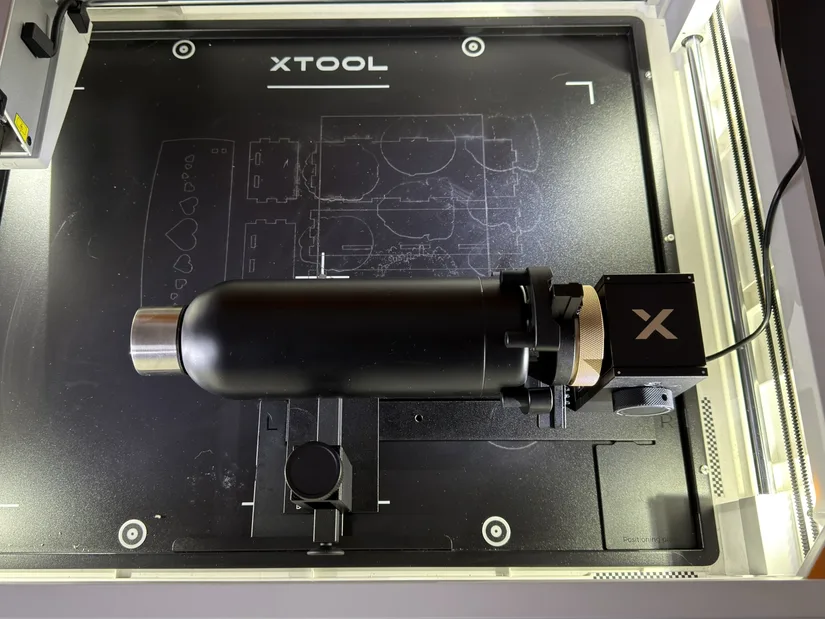
Care is required because the laser shield can contact the rotary jaws. If the jaws are holding the outside of the tumbler, frame the design before engraving to confirm that the shield will clear them throughout the entire job. Whenever possible, securing the tumbler from its inner edge provides additional clearance. Using the recommended settings, the finished engraving came out clean and sharp. Even the gradient sections were reproduced clearly, helping the design stand out against the tumbler.
Inkjet Printing
The upgraded CMYK inkjet cartridge used by the M2 produces improved colour reproduction and deeper blacks. xTool Studio can also monitor the cartridge’s remaining ink levels, making it much easier to know when a replacement will be needed.
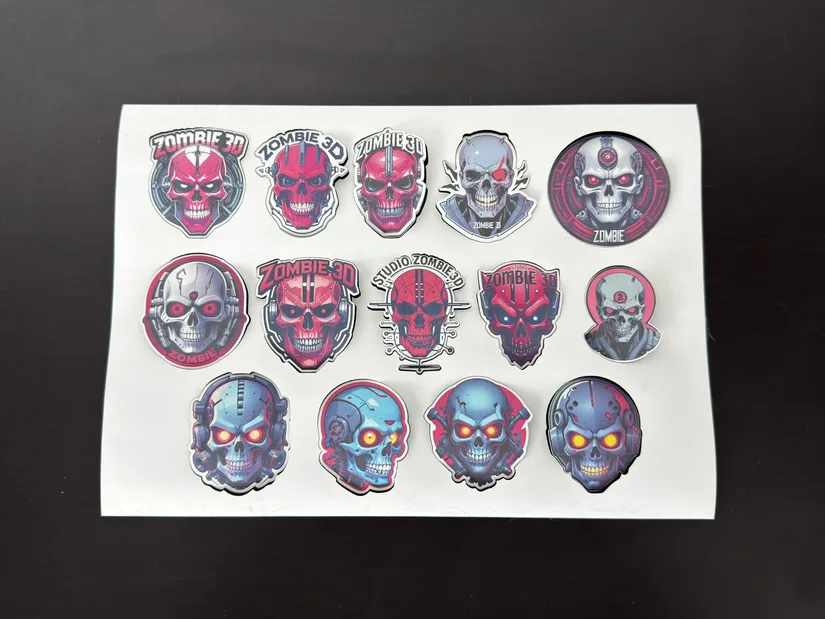
For the first test, I printed a sheet of stickers I designed and then used the laser to cut them out. I enabled tabs to prevent the individual stickers from being moved by the air assist after they were cut. I used 95% power at a speed of 13 mm/s, although these settings may need to be adjusted depending on the type and thickness of the paper to prevent singeing around the edges. It is also important to confirm that any sticker material is laser-safe. PVC-based vinyl should not be laser-cut because it can release hazardous and corrosive fumes. The finished stickers were vibrant, and the cuts were clean and accurate.
©3DWithUs – Print and Photo: Will Zoobkoff
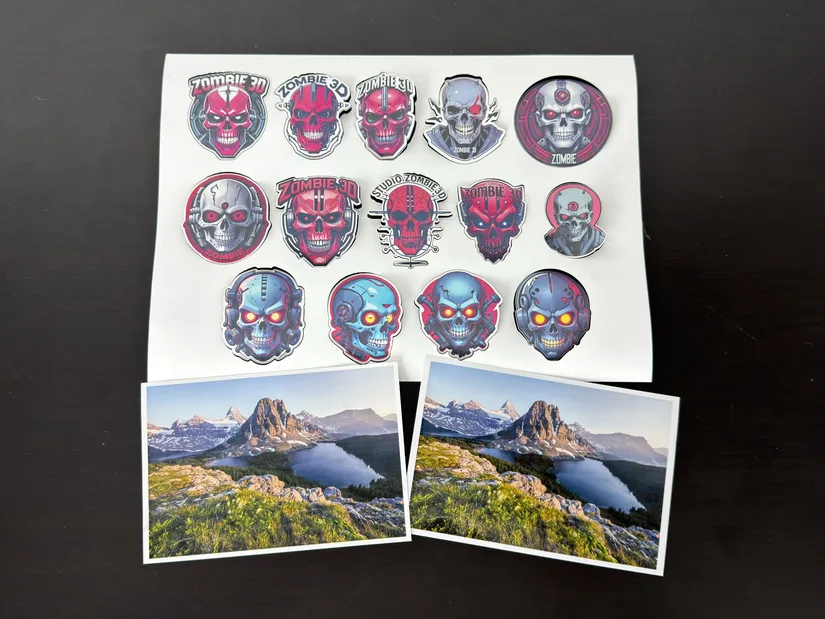
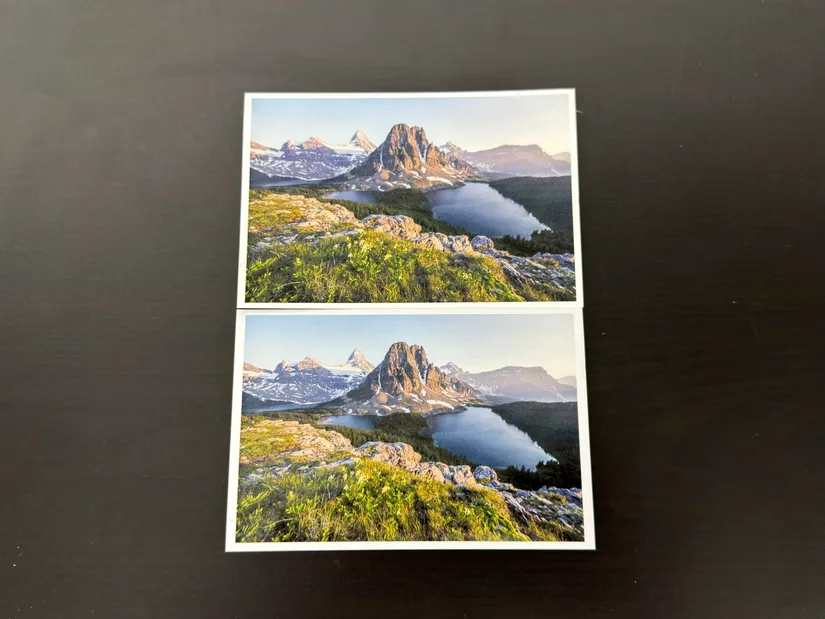
I also printed the same landscape photograph on matte and glossy photo paper. The glossy version produced the best overall result, although both prints came out very well with the new four-colour cartridge. The M2 delivered clean, vibrant prints, while the improved inkjet cap and automatic cleaning process helped ensure the print head was properly prepared before each job.
Materials, Settings and Supplies
There is a vast collection of materials and supplies for laser engraving and cutting on the xTool website.
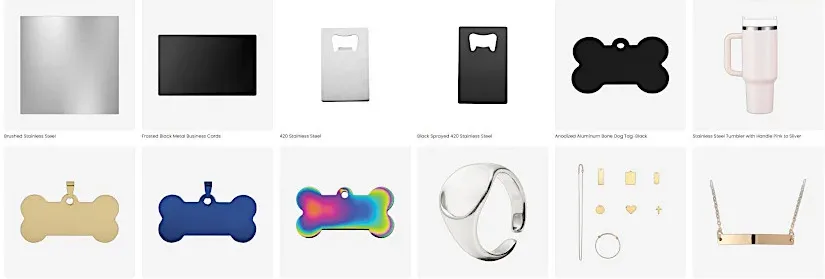
Apart from the materials available for purchase, their database includes all the settings for xTool machines. This library is very handy for investigating materials and settings before planning a project.
Compare to Other Laser Cutters and Engravers
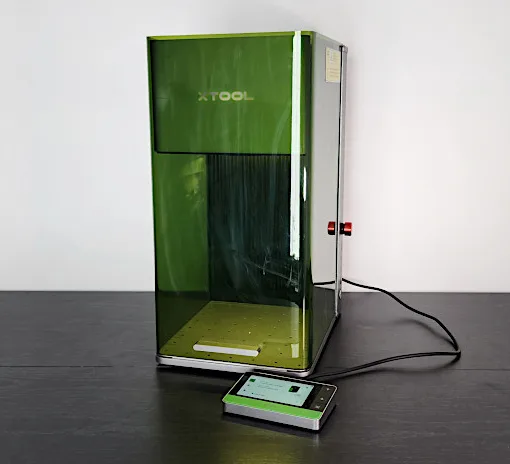
xTool offers a wide range of laser cutters and engravers, from compact desktop machines to more powerful systems for professional use. The official xTool comparison page is a useful starting point for exploring different laser types, specifications, and features. On 3DWithUs, we have also tested several xTool machines, including:
The xTool M2 takes a slightly different approach by combining diode laser cutting and engraving with optional full-colour inkjet printing. Compared to the previous M1 Ultra, it drops the blade-cutting tools in favour of a simpler, more focused design. This makes it an interesting option for makers who want to create personalised gifts, decorations, stickers, and other craft projects.
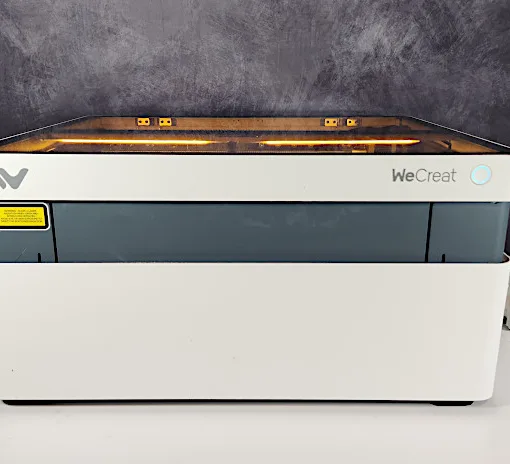
For those considering alternatives, we have also reviewed several diode laser systems from other manufacturers:
- Snapmaker 40W Laser Module (Review)
- Creality Falcon2 22W (Review)
- LaserPecker LP2 Laser Engraver (Review)
While some alternatives offer greater laser power or specialise in particular engraving applications, the M2 stands out for its combination of laser processing, colour printing, and interchangeable modules. For more options across different price ranges, visit our Best and Budget Laser Cutters and Engravers Guide.
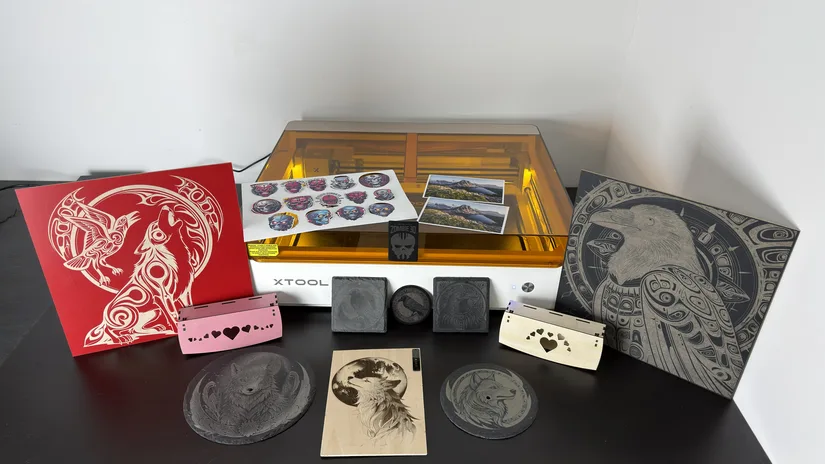
©3DWithUs – Print and Photo: Will Zoobkoff
Have questions? Feel free to ask in the comment section below.
For a wider discussion or to share your own xTool M2 projects, join us in the forum:
Conclusion and Pros & Cons
Compare the Prices & Bundles:
Official Website | Amazon
xTool M2 Review
Review Summary
The xTool M2 proved to be a capable and easy-to-use machine throughout testing. The 10W laser produced clean, detailed engravings on wood, coloured MDF, leather patches, and anodized metal, while also cutting the 3 mm basswood and MDF boxes cleanly and efficiently. The RA3 Lite adds useful rotary engraving capabilities without requiring a riser base, and the upgraded CMYK inkjet module produced vibrant colours, deeper blacks, and impressive results on stickers and photo paper.
Several features help make the M2 approachable for beginners. The dual-camera system, automatic distance measurement, built-in air assist, magnetic module mounting, and extensive xTool Studio material library remove much of the trial and error normally associated with laser cutting and engraving. The recommended settings provided reliable starting points for almost every project, with only minor power adjustments needed for some materials. The updated software is also simple to navigate, while its improved design and AI tools make it easier to prepare projects without relying on several separate programs.
Removing the blade-cutting tools found on the M1 Ultra will not suit users who regularly work with vinyl or other materials that require a physical blade. However, it gives the M2 a more focused design and a lower starting price for crafters primarily interested in laser cutting, engraving, and colour printing. The optional infrared laser, 20W laser, and RA3 Lite also allow users to expand the machine as their needs grow.
Overall, the xTool M2 offers an excellent balance of performance, versatility, and ease of use. Its enclosed Class 1 design makes it well suited to home workshops, while the clean results and streamlined workflow give it enough capability for small businesses and more experienced makers. For anyone looking for an accessible desktop laser with the added flexibility of full-colour printing, the M2 is an easy machine to recommend.
Pros
1. Versatile laser cutting, engraving, and full-colour inkjet printing.
2. Fully enclosed Class 1 laser design.
3. Dual cameras for accurate positioning and alignment.
4. Easy module swapping with magnetic mounting.
5. User-friendly xTool Studio with extensive material presets.
Cons
1. No blade-cutting functionality, unlike the M1 Ultra.
2. Limited cutting power with the 10W laser.
3. Inkjet printing requires a separate optional module.
4. Rotary engraving requires an optional RA3 attachment.
5. Inkjet printing area is smaller than the laser work area.