


EINSTAR Rockit and EINSTAR 2 Twin Stars Discussion

Featured Replies
Topics
-
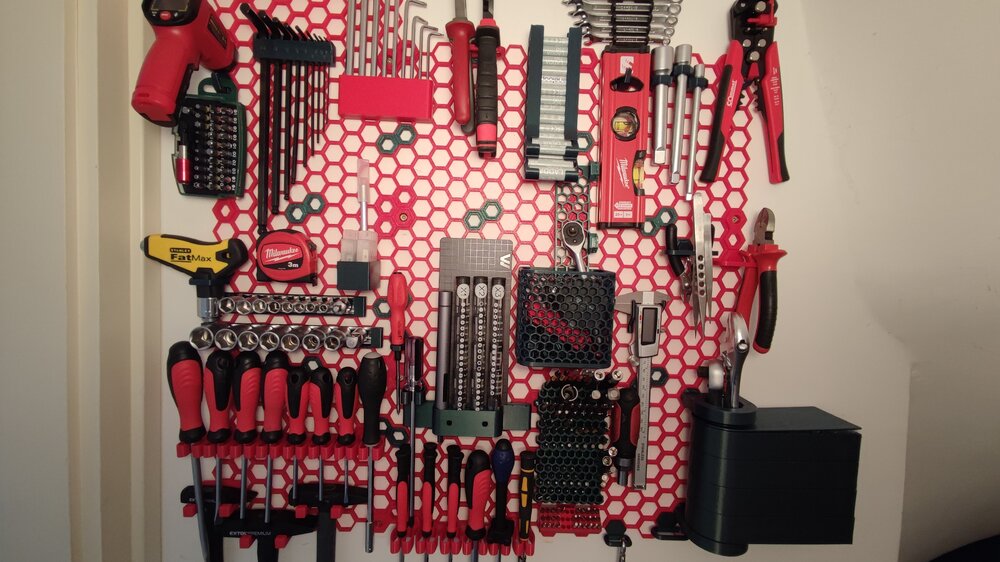
This was my very first time trying out PETG to print something that needs to be more durable than PLA. I suggested this Honeycomb Storage Wall project to my father and we aggreed to try it out with PETG. It went much easier than excpected. A little bit of stringing here and there, but the final result was good and worth it. Now we are thinking of printing another one for the garage wall as well :D I used CR-PETG for the red parts. Green one is from 3dk.berlin. After i ran out of both I started t
-
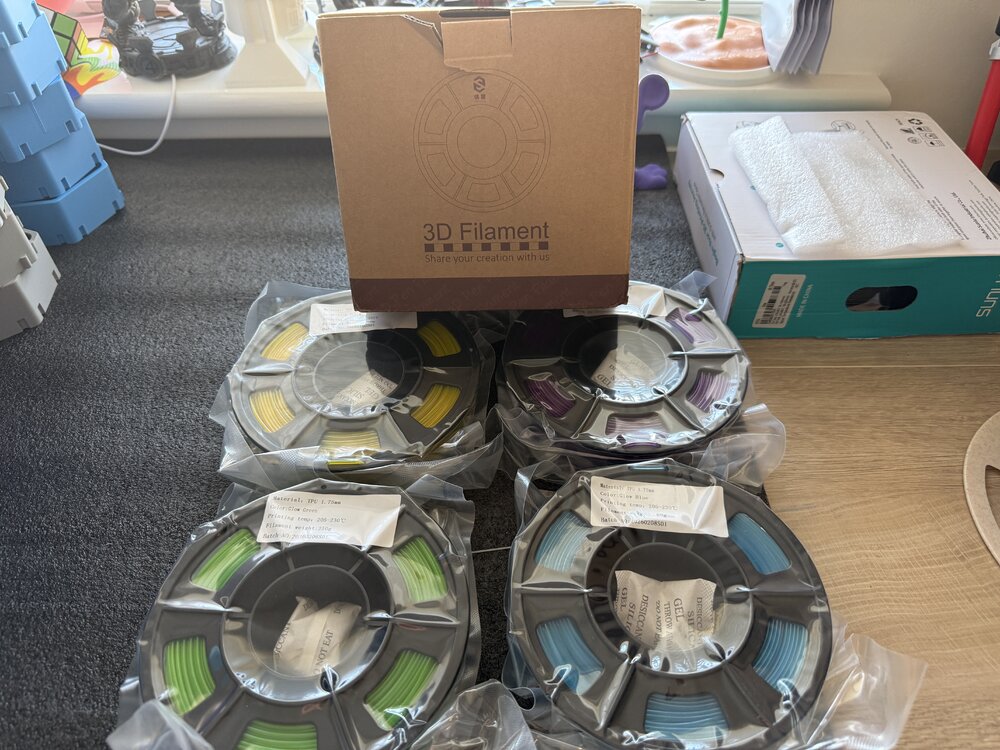
4 250 gram Yousu glow in the dark TPU been sent to try ( yellow purple green blue) will post prints after I’ve tried it. Should be interesting to try print with glow TPU.
-
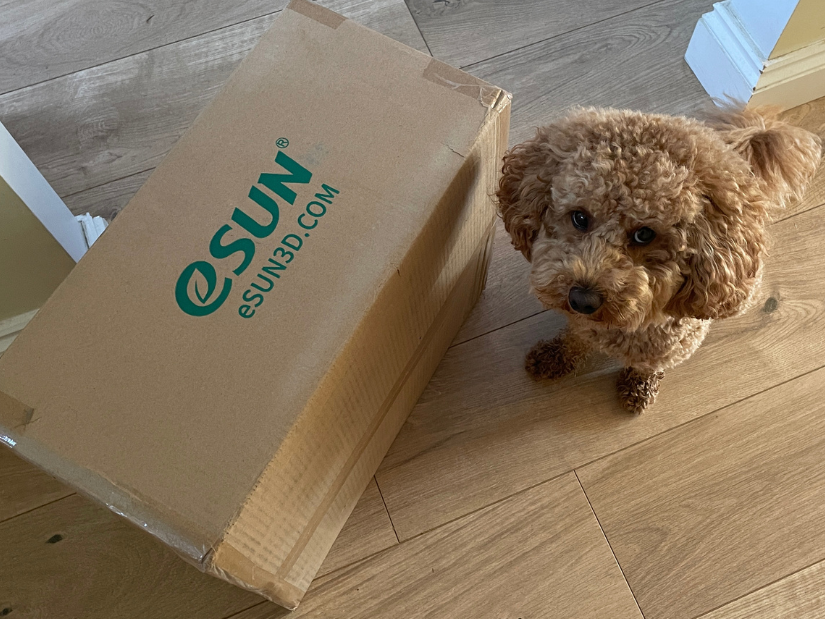
Power of tradeshows. Every little kick towards collaboration helps. The first part of our eSUN collaboration has arrived: a box full of filament. Teddy is definitely not amused that I forced him to work again 🐾 Earlier this year I visited the eSUN booth at TCT3Sixty. They had an impressive range of materials available. My original post on X: https://x.com/MaxFunkner/status/2092605001990332899
-
We’re excited to launch a new community initiative to reward contributors on the 3DWithUs forums! Each month, we’ll reward the best contributions in our forum: whether it’s a helpful answer, an inspiring project showcase, or a thoughtful discussion. Unlike automated giveaways, this one is judged by humans – our editorial team will pick the winners. The focus is on quality posts that bring value to the community, not just luck. 🎁 Prizes: Each month, we select 1–4 contributors whose posts or comm
-
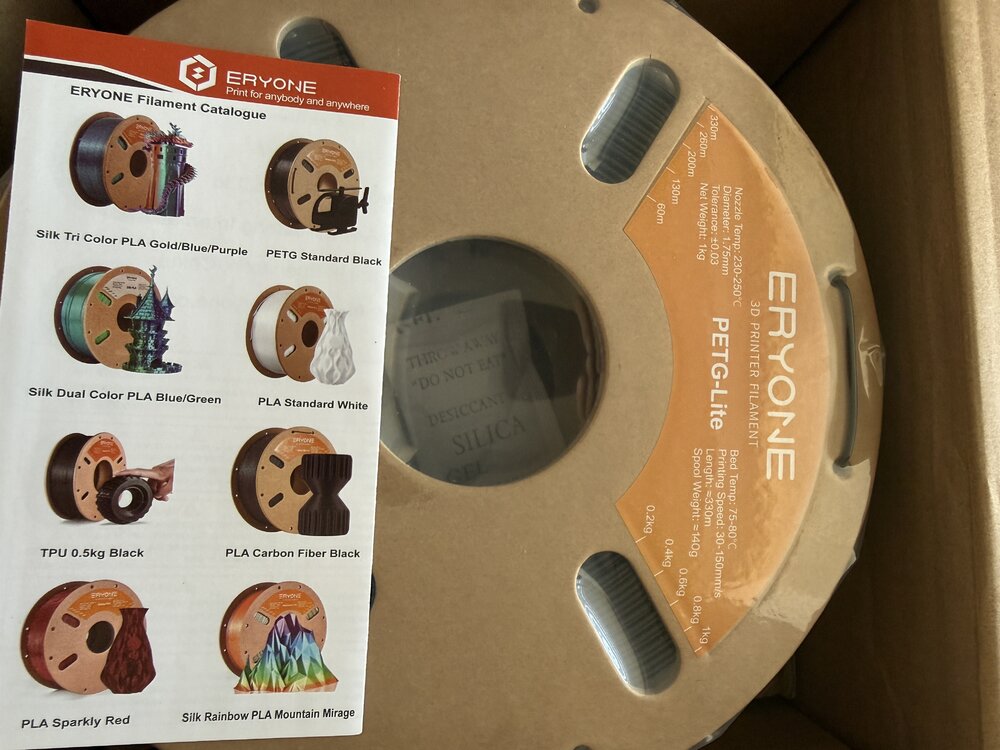
Just got a couple of kilos of Eryone PETG lite sent to try will post thoughts and results in another post when I’ve tried it. It’s supposed to print like PLA less stringy and easier to print.



Account
Navigation
Search
Configure browser push notifications
Chrome (Android)
- Tap the lock icon next to the address bar.
- Tap Permissions → Notifications.
- Adjust your preference.
Chrome (Desktop)
- Click the padlock icon in the address bar.
- Select Site settings.
- Find Notifications and adjust your preference.
Safari (iOS 16.4+)
- Ensure the site is installed via Add to Home Screen.
- Open Settings App → Notifications.
- Find your app name and adjust your preference.
Safari (macOS)
- Go to Safari → Preferences.
- Click the Websites tab.
- Select Notifications in the sidebar.
- Find this website and adjust your preference.
Edge (Android)
- Tap the lock icon next to the address bar.
- Tap Permissions.
- Find Notifications and adjust your preference.
Edge (Desktop)
- Click the padlock icon in the address bar.
- Click Permissions for this site.
- Find Notifications and adjust your preference.
Firefox (Android)
- Go to Settings → Site permissions.
- Tap Notifications.
- Find this site in the list and adjust your preference.
Firefox (Desktop)
- Open Firefox Settings.
- Search for Notifications.
- Find this site in the list and adjust your preference.
Join the conversation
You can post now and register later. If you have an account, sign in now to post with your account.
Note: Your post will require moderator approval before it will be visible.