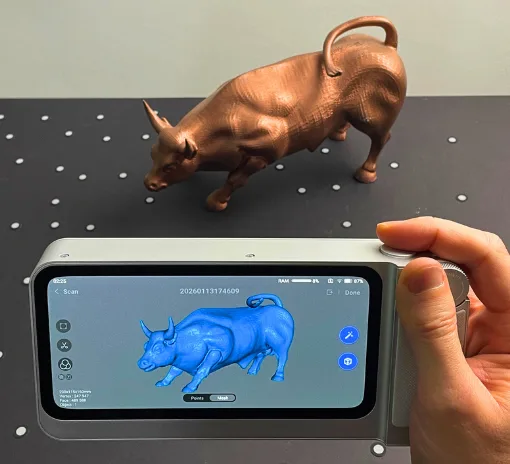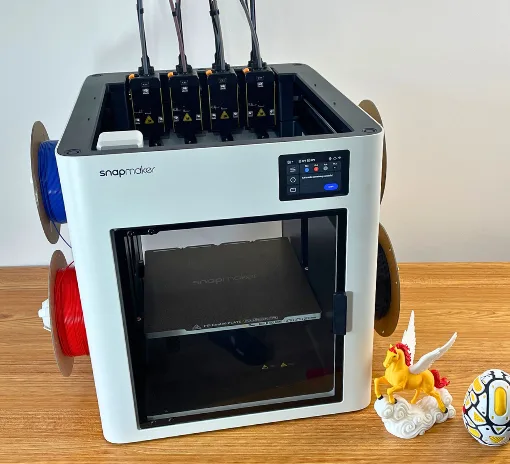
Creality has been developing 3D scanners for years, and the Pika feels like one of its most compact and versatile designs so far. With Blue Laser and Infrared modes, Wi-Fi connectivity, color mapping, removable batteries, and a built-in screen, it packs a surprising amount of functionality into a very small body. In this hands-on review, I tested it on miniatures, a carved pumpkin, face scanning, marker and marker-free workflows, and even took one of the scans all the way through to a finished multicolor 3D print.
Table Of Contents (Jump to a Section)
Where to Buy the Creality Pika
Price: $699

Compare the Prices & Bundles:
Official Website | Amazon
What’s in the Box
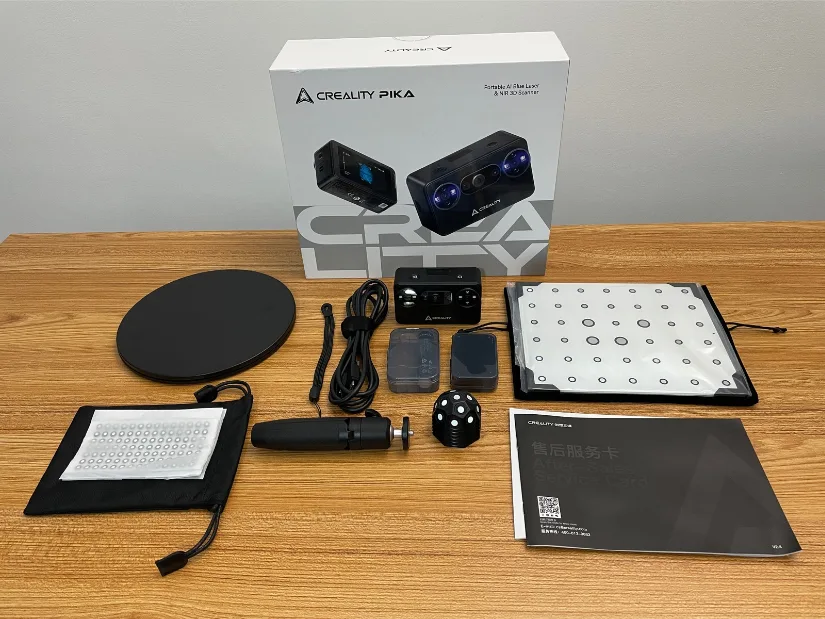
©3DWithUs – Photo: Max Funkner
Creality Pika 3D Scanner • Tripod • High-Precision Glass Calibration Board • 2m USB 3.0 Type-C Data Cable • Turntable • Lanyard • Rechargeable Battery ×2 • Reflective Markers (D6mm ×10, D3mm ×10) • Marker Tower ×6 • NIR Filter ×2 • Cleaning Cloth • Quick Start Guide, Certificate of Conformity & Warranty Card
Please note that the product may be slightly revised over time, with additional add-ons or features introduced. Visit the official product page for the latest product contents and specifications.
Creality Pika Key Specifications
– Scanning technologies: 7 parallel blue laser lines + NIR structured light
– Accuracy: Up to 0.03 mm in blue laser mode; up to 0.1 mm in NIR mode
– 3D resolution: 0.1–2 mm blue laser; 0.15–2 mm NIR
– Scanning speed: Up to 110 FPS on PC in blue laser mode; up to 30 FPS on PC in NIR mode
– Minimum scan volume: 10 × 10 × 10 mm with blue laser; 50 × 50 × 50 mm with NIR
– Working distance: 160–400 mm blue laser; 140–1,000 mm NIR
– Alignment: Marker, Global Marker, and Marker-Free in blue laser mode; geometry/texture tracking in NIR mode
– Color mapping: Supported
– Outdoor scanning: Up to 110,000 lux with blue laser; up to 80,000 lux with NIR filter
– Lighting: 4 blue/white LEDs + 4 infrared LEDs
– Laser safety: Class 1, eye-safe
– Display: 3-inch touchscreen
– Processor: 8-core CPU, 2.0 GHz
– Battery: 3,350 mAh removable battery, with a second battery included
– Connectivity: USB 3.0 Type-C and Wi-Fi 6
– Weight: 260 g including battery
– Dimensions: 100 × 60 × 35 mm
– Operating temperature: -10°C to 40°C
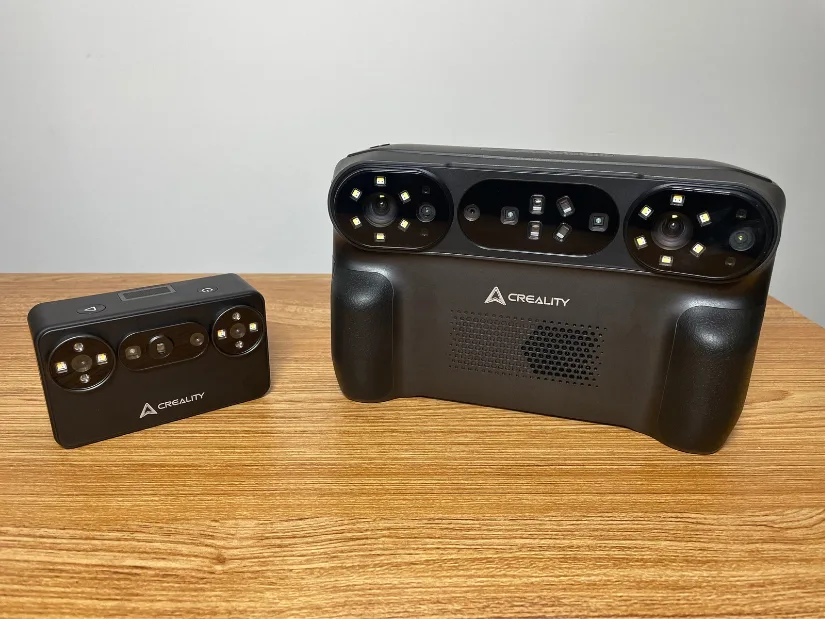
©3DWithUs – Photo: Max Funkner
The Pika sits at the compact, portable end of Creality’s current 3D scanner lineup, while the larger Sermoon P1 is designed around a more substantial standalone scanning setup. We previously tested the latter in our Creality Sermoon P1 hands-on review, making the two scanners an interesting comparison in size, workflow, and intended use.
Setup and Calibration
Needless to say, the compact size makes the Creality Pika very portable and lightweight. During the initial setup, I first tried powering the scanner directly from the supplied USB cable without installing a battery, but it would not start. Both included batteries also arrived at little or no charge. As soon as I inserted one of the batteries, however, the scanner powered on and worked without any issues. The supplied USB cable can charge the battery directly from a laptop, which is convenient because the workflow does not need to be interrupted while working at a desk.
Wi-Fi
For my usual 3D scanning workflow, I prefer to use a wired connection whenever possible. The main reason is simple: I like to keep my laptop connected to the internet while scanning or cleaning scans, for example.
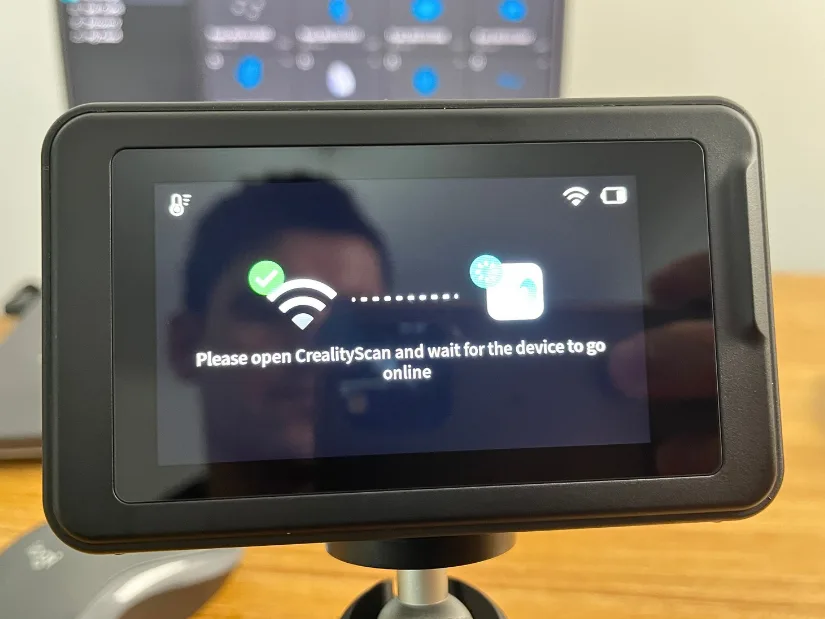
The Pika’s lightweight design and included filters for outdoor scanning make wireless use much more appealing. Switching to Wi-Fi mode is straightforward. Move the toggle on the side of the Pika to Wi-Fi mode, then follow the instructions in CrealityScan to connect to the scanner’s hotspot. In my case, I also had to manually open the Wi-Fi settings on my laptop and connect to the Pika network there.
Calibration
The calibration board is stored behind the protective foam inside the package, and I initially missed it during the unboxing. I only found it after CrealityScan prompted me to update the Pika firmware and then run the calibration process.
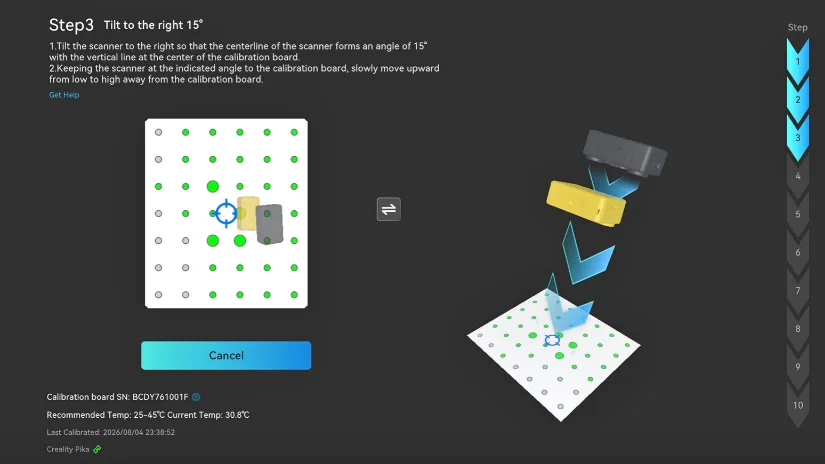
Calibration itself is guided step by step in CrealityScan. The software asks you to position and tilt the scanner at several angles relative to the calibration board, while the on-screen graphics show the required movement and orientation.
Software: CrealityScan
The more I work with CrealityScan, the more I like it. I particularly appreciate having everything in one place, including projects created with different Creality 3D scanners. This makes it easy to revisit previous scans without switching between different applications.
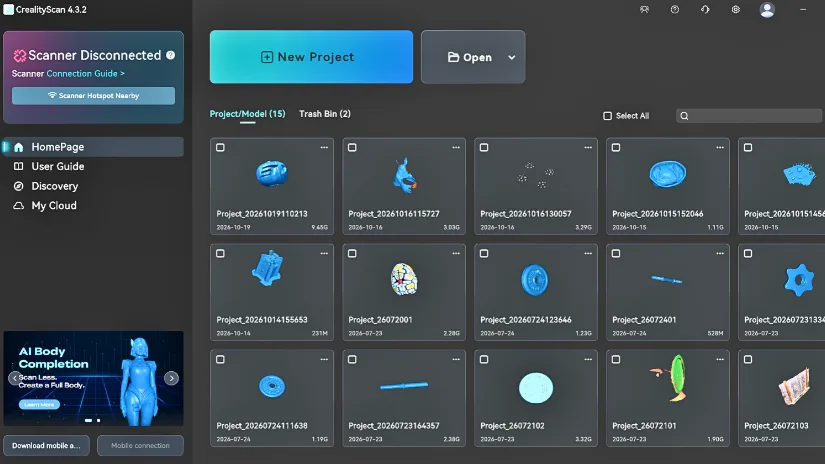
Over the past few months, I’ve also noticed new features being introduced through software updates. An interesting addition is AI Body Completion, designed to help complete missing parts of a scanned human body. With each update, CrealityScan is becoming a more comprehensive 3D scanning and processing platform.
Testing and Results
Customized Pumpkin
With Halloween approaching, I decided to scan something very seasonal and instantly recognizable: a carved pumpkin. This was actually my first time carving one. Although I am not a big fan of using food purely for amusement, I do think pumpkin carving is one of those creative activities worth trying at least once.
The process itself is surprisingly educational. It encourages creativity, while also teaching you how to work with unfamiliar tools and materials. As an editor-in-chief, I have published many designs featuring pumpkins over the years, so carving one in the traditional way felt like a natural starting point.
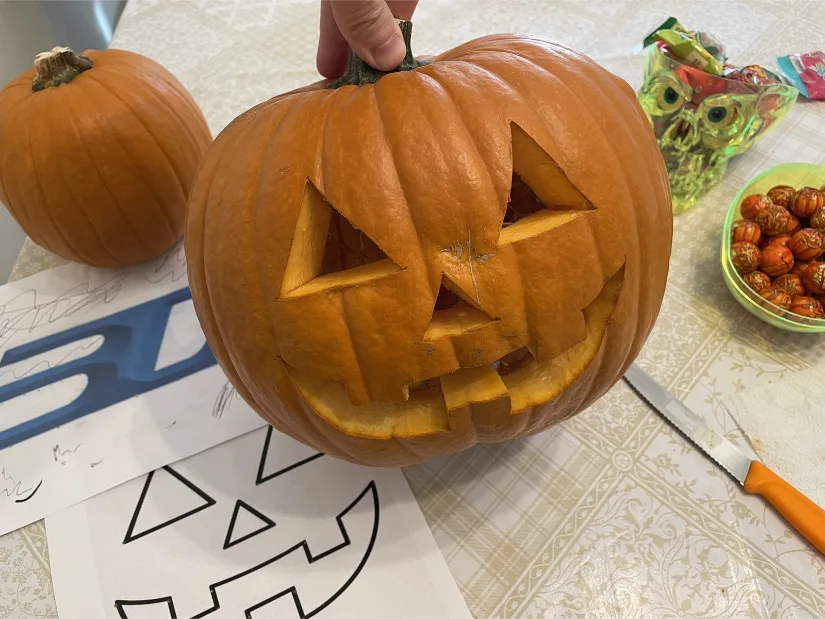
©3DWithUs – Carved by and Photo: Max Funkner
What makes it more interesting today is that modern 3D scanning tools give us the opportunity to capture that handmade result digitally and then replicate, modify, or recreate it in completely different materials.
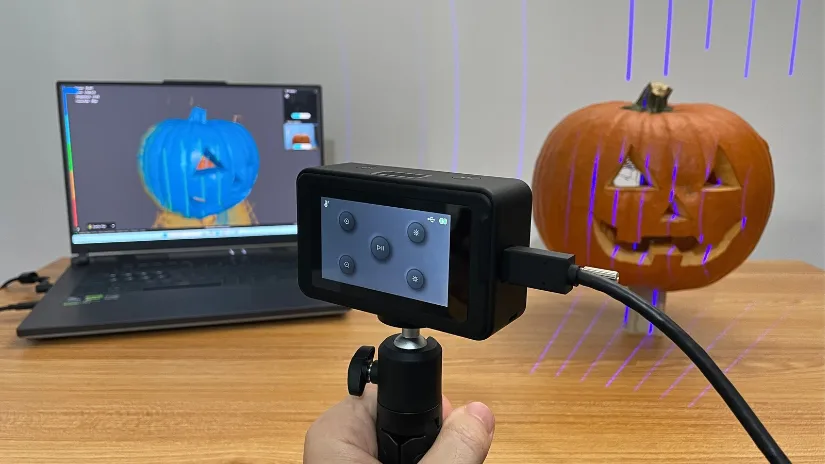
©3DWithUs – Photo: Max Funkner
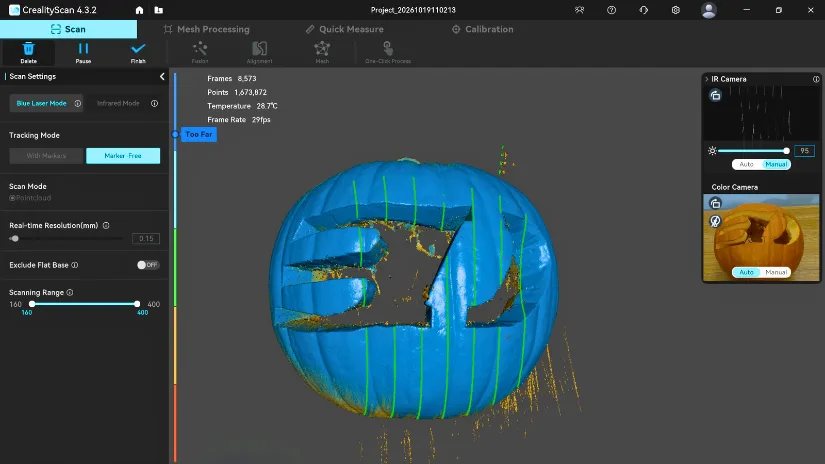
One of the three pumpkin scans that I later aligned and merged into a complete model is shown above. To my biggest surprise, I was able to capture my custom carved pumpkin in Blue Laser Mode using Marker-Free tracking. In other words, the Pika managed to scan the pumpkin in high detail without a single reflective marker being applied.
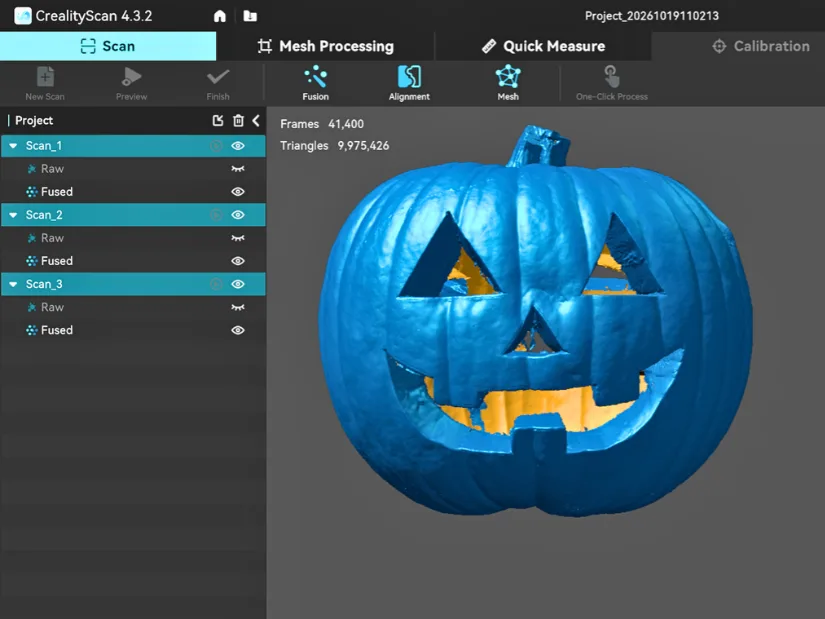
Once the front, back, and bottom scans were automatically aligned and merged in CrealityScan, the final model came together very well. The overall pumpkin shape, carved openings, surface texture, and smaller details were preserved surprisingly well, especially considering that all three scans were captured in Marker-Free mode.
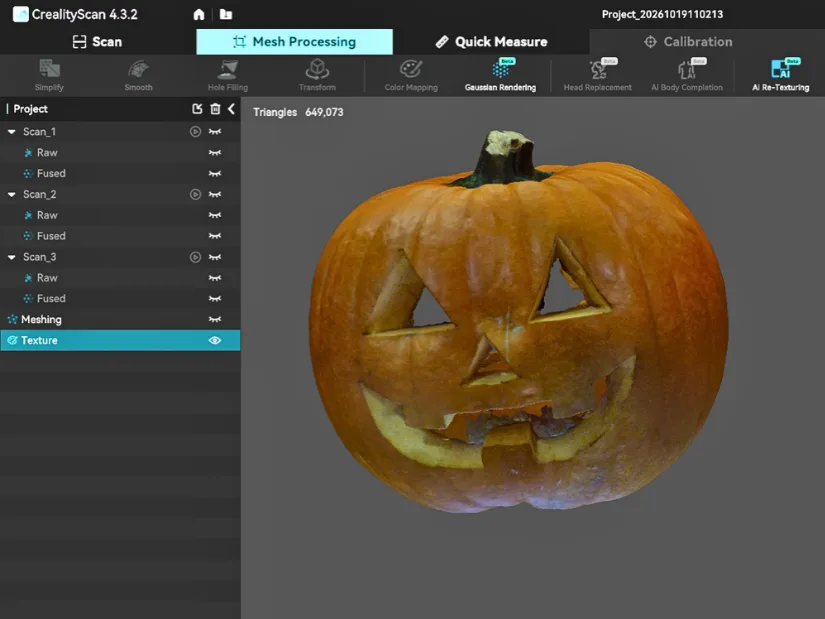
Another pleasant surprise was the Color Mapping result. After the geometry from the three scans was aligned and merged, CrealityScan applied the captured color texture very well. The orange skin, darker carved areas, and lighter exposed pumpkin flesh all transferred clearly to the digital model, making it look much closer to the original object rather than just a plain mesh.
The Hole Filling feature surprised me even more. Normally, making a scan like this fully 3D printable could mean a lengthy cleanup process in third-party software such as Blender, especially around the carved openings and internal gaps.
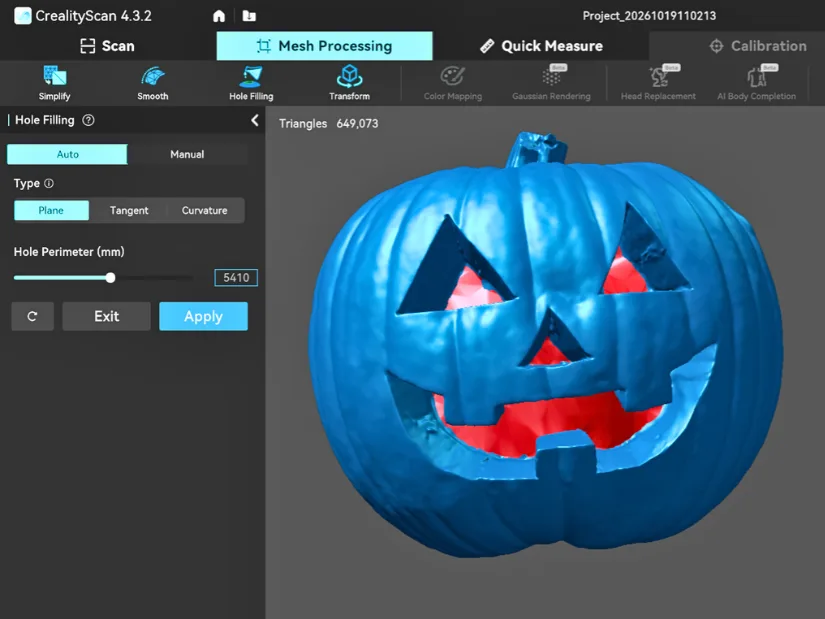
Here, a quick pass through Mesh Processing → Hole Filling (Type: Curvature) was enough to close the problem areas and turn the model into a solid, printable mesh. From there, the next stop was simply the slicer software.

©3DWithUs – Scan, Print and Photo: Max Funkner

The printed result came out even better than I expected. From the front, the carved pumpkin has a classic Halloween smile, while on the back I attempted to carve the ‘3D’ element from the 3DWithUs logo.
The original 3D carving on the real pumpkin is not especially precise, but the scanned and printed version came out surprisingly well. I turned it into a four-color 3D print that can now be used as a small Christmas tree bauble or seasonal decoration.
The design can also be developed further. For example, the model could be hollowed out and fitted with a small LED light inside, turning it into a miniature illuminated pumpkin ornament.
Wi-Fi Marker Scanning: Turntable Model
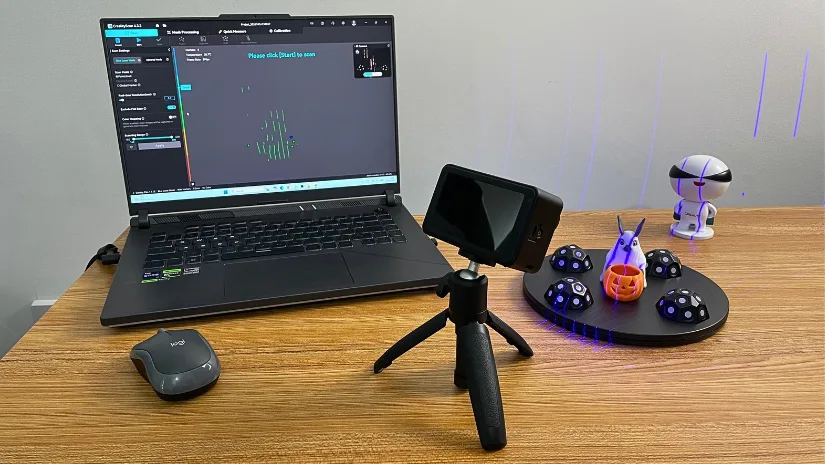
To test both Wi-Fi operation and marker-based scanning, I used an existing Halloween-themed Bunny Ghost Pumpkin 3D printed model available on Creality Cloud. The model is relatively small, which made it a good test subject for Blue Laser scanning with reflective markers placed around the turntable.
©3DWithUs – Photo: Max Funkner
This setup also gave me a chance to see how comfortably the Pika could be used wirelessly while rotating the model and maintaining marker tracking throughout the scan.
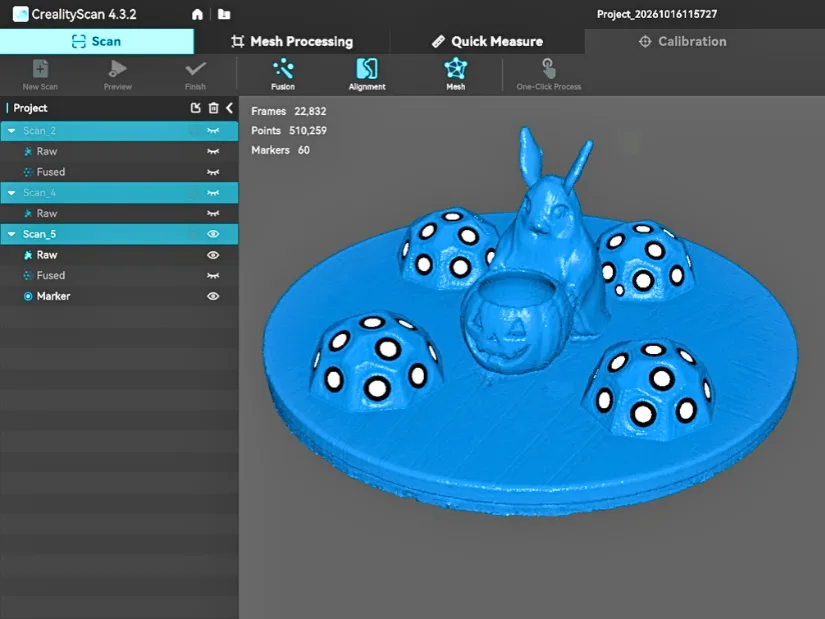
The scan came out well and showed that the Pika can comfortably handle small miniatures and figurines when needed. The six supplied marker towers were especially useful here, as they gave the scanner enough tracking references around the turntable without requiring me to stick reflective markers directly onto the model.
Since this was already a 3D printed object, there was little point in printing it again. Instead, I moved on to a more practical test where the Pika’s Wi-Fi connection could offer a real advantage: head scanning.
Wi-Fi Infrared: Face Scanning
Note: For face and head scanning, use the dedicated Infrared Face mode. Although the Pika’s blue laser is rated Class 1 (eye safe), infrared mode is the intended option for scanning people and is more suitable for this workflow.
Creality Cloud is already known for its growing range of AI tools, so I was pleased to see similar AI-assisted features appearing in CrealityScan. Head Replacement and AI Body Completion are currently marked as Beta features, and they add an interesting extra layer to the 3D scanning workflow. Here are my results.
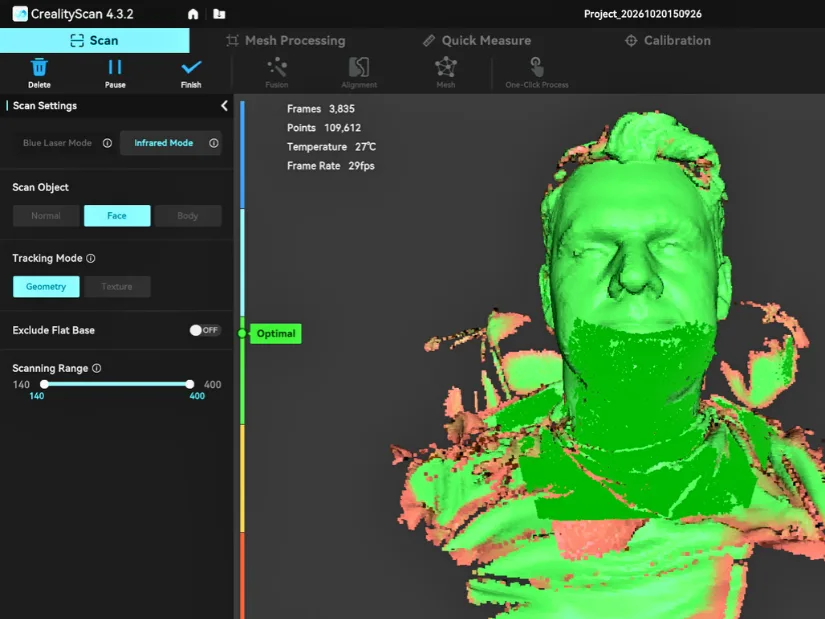
Taking a self-scan with the Pika was surprisingly quick and straightforward. I used Infrared Mode with the dedicated Face setting and scanned over Wi-Fi, which made moving the scanner around my head much easier. The same test can also be done with a wired connection, and the supplied cable is long enough to make that practical as well.
To activate the Head Replacement feature, I had to download an additional package of around 200MB. CrealityScan currently provides several preset bust options, including five female and five male models.
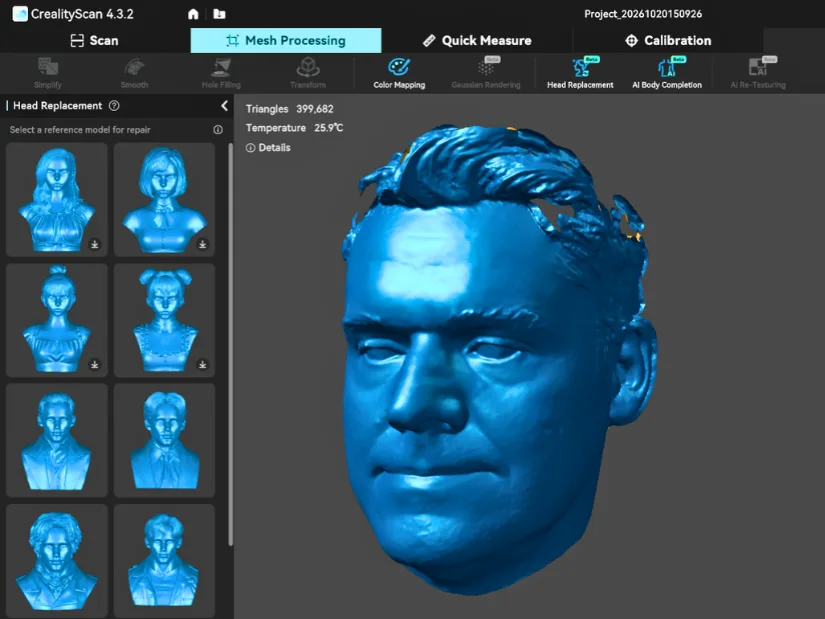
I tried the feature a few times, but in my case the head replacement did not complete successfully. CrealityScan returned the message: ‘Head Replacement failed. Please check whether the model has complete facial features.’ This suggests that the quality or completeness of the original face scan is important for the feature to work properly.
Nevertheless, I am happy to see where this feature is heading. I would not mind 3D printing my own bust at some point, especially as I already have a nice marble-effect filament waiting for the right project. Of course, the scanned result can already be taken into third-party software for further editing, but a reliable one-click workflow directly inside CrealityScan would be very welcome.
Compare to Other 3D Scanners
Within Creality’s current 3D scanner lineup, the Pika sits on the more compact and portable side. Its small size, built-in screen, removable batteries, Wi-Fi connectivity, Blue Laser mode, and Infrared mode make it a flexible option for tabletop scanning and more mobile workflows. It is particularly appealing for users who want one lightweight scanner for small objects, miniatures, color capture, and face scanning.
Compared with the larger Creality Sermoon P1, however, there are some clear trade-offs. The Sermoon P1 feels more like a dedicated scanning workstation and, in my testing, its Blue Laser scanning was noticeably faster. The Pika is easier to carry and more flexible thanks to its compact wireless design, but when scanning larger or more demanding objects in Blue Laser mode, the slower capture speed becomes noticeable.
The closest competitors to the Pika are probably the Revopoint POP 4 and Einstar Rockit. Both compete on portability and versatile scanning workflows, although the Rockit sits in a considerably higher price bracket—roughly twice the price of the Pika. Feature-wise, all three target users who want a compact scanner that can move between small objects, handheld scanning, and more mobile applications, but they approach tracking, wireless operation, color capture, and laser/NIR scanning differently.
Overall, the Pika fits well into the increasingly competitive group of compact and relatively affordable 3D scanners. Its portability, dual Blue Laser and Infrared scanning modes, Wi-Fi operation, and useful CrealityScan features make it an interesting option, although the best choice will still depend on the type of objects you plan to scan and your budget. For a broader look at alternatives across this price range, see our Best Budget 3D Scanners guide.
Have questions? Feel free to ask in the comment section below.
For a wider discussion or to share your own Creality Pika scans, join us in the forum:
Conclusion and Pros & Cons
Compare the Prices & Bundles:
Official Website | Amazon
Creality Pika Review
Review Summary
After spending time with the Creality Pika, I think its strongest point is how much functionality Creality managed to fit into such a compact scanner. It is light, easy to move around, works in both Blue Laser and Infrared modes, and the Wi-Fi option makes it much more practical for handheld and face-scanning workflows. I also liked the removable batteries, built-in screen, and the fact that CrealityScan is becoming a more complete environment rather than just basic scanning software.
My pumpkin project was probably the most impressive test. I was able to scan the carved pumpkin in Blue Laser Marker-Free mode, align three separate scans, apply color mapping, use Hole Filling, and then send the repaired model to a slicer. The final four-color print came out surprisingly well and showed that the Pika can be useful not only for capturing objects digitally, but also for turning custom objects into models.
There are still some limitations. Blue Laser scanning is noticeably slower than on the larger Sermoon P1, and some of the newer AI-assisted tools in CrealityScan, such as Head Replacement, are in Beta. My attempts with Head Replacement did not work successfully, although I am pleased to see Creality moving in this direction. I also found that certain workflows require a little experimentation, especially when switching between wired, Wi-Fi, marker, marker-free, and color scanning modes.
Overall, I see the Pika as a very capable compact scanner for users who value portability and versatility more than maximum scanning speed. It handled miniatures, a carved pumpkin, color mapping, marker scanning, and face scanning well enough to make it genuinely useful across different projects.
Pros
– Compact and lightweight
– Blue Laser and Infrared scanning modes
– Wi-Fi and wired scanning
– Good detail on medium size objects.
– Useful CrealityScan tools and growing AI toolset
Cons
– Blue Laser scanning is relatively slow
– Some workflows take time to learn
– AI features are still in Beta
– Wi-Fi scanning can interrupt laptop internet access
– Supplied batteries arrived fully discharged