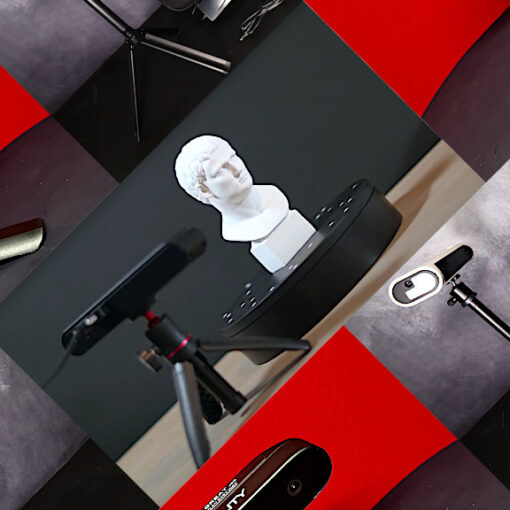
The Revopoint INSPIRE 2 arrived neatly packaged and ready to scan. This compact device builds on Revopoint’s experience in affordable 3D scanning, offering both handheld and desktop modes in a lightweight form. Designed for makers and professionals who require quick and accurate captures of small to medium-sized objects. The INSPIRE 2 combines structured light and infrared laser technology.
In this hands-on overview, I’ll share setup notes, scanning experience, and early impressions from real-world test scans using both PC and mobile modes. As usual, we’ll wrap up with final thoughts and a list of pros and cons.
Table Of Contents (Jump to a Section)
- Specifications
- What’s Included – Accessories
- Setup and Calibration
- Software: Revo Metro
- Testing and Results
- Compare to Other 3D Scanners
- Conclusion and Pros & Cons
Where to Buy the Revopoint INSPIRE 2
Price: $459
Compare the Prices & Bundles:
Official Website | Amazon | AliExpress
Revopoint INSPIRE 2 Key Specifications
- Scanning modes: Handheld and desktop
- Technology: Dual-camera IR structured light + IR multi-line laser
- Precision: up to 0.03 mm
- Accuracy: up to 0.05 mm (volumetric: 0.05 mm + 0.1 mm × L)
- Working distance: 200–400 mm (indoor)
- Scan volume: 20 × 20 × 20 mm to 2 × 2 × 2 m
- Capture speed: 18 fps (structured light), up to 90 fps (laser with GPU)
- Color capture: RGB camera, 1280 × 800
- Tracking: Feature, marker, global marker
- Connectivity: USB-C, Wi-Fi 6, Bluetooth 4.1
- Supported formats: PLY, OBJ, STL, ASC, 3MF, GLTF, FBX
- OS support: Windows, macOS, Android, iOS
- Dimensions & weight: 132 × 53 × 27 mm, 190 g
For the full list of specifications, please visit the official product page.
Minimum PC requirements:
Windows: Intel i7-13th Gen or Ryzen 7 5800, 16 GB RAM, NVIDIA RTX 3060 (8 GB).
macOS: M1 Pro/Max/Ultra, 16 GB RAM.
Minimum Mobile requirements:
Android: 9.0+, ≥8 GB RAM, ≥128 GB storage.
iPhone: X or newer, iOS 14+, >4 GB RAM.
iPad: 10th gen or later.
What’s in the Box
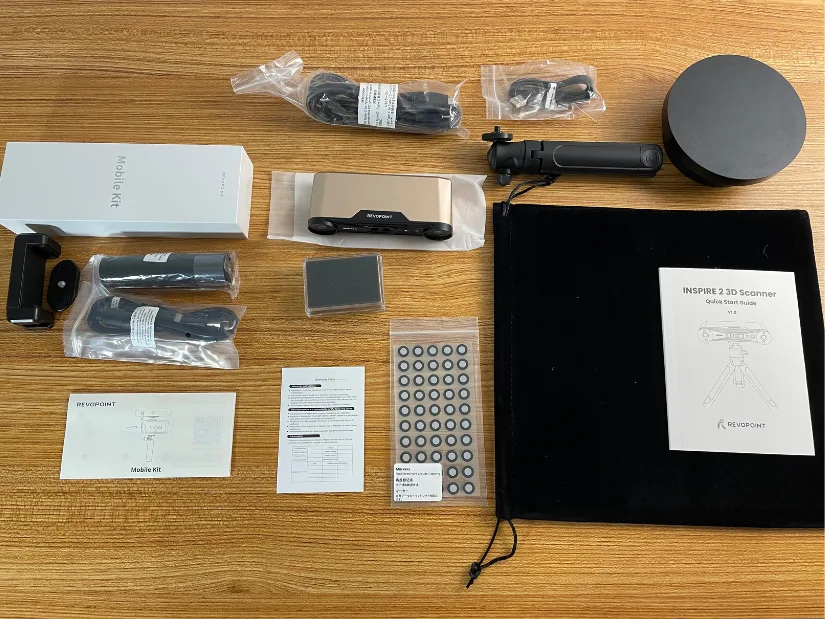
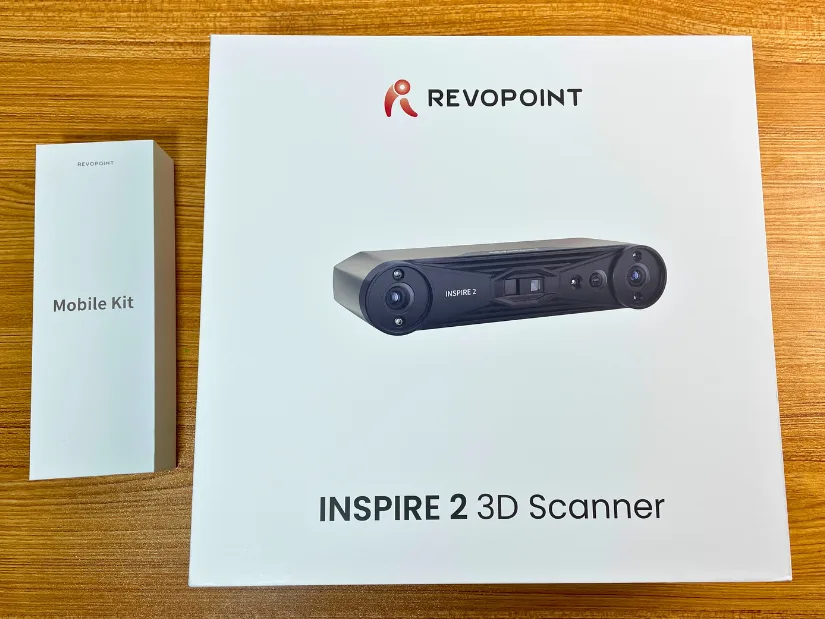
Revopoint INSPIRE 2 is available in two editions: Standard and Premium. To use the INSPIRE 2 with a mobile phone, the Premium edition is required, as it includes the additional accessories needed for mobile operation, such as a power bank. Below is the unboxed Premium version.
©3DWithUs – Photo: Max Funkner
Setup and Calibration
The INSPIRE 2’s packaging feels less ‘rich’ compared with the Revopoint MetroX, for example, the MetroX comes with a more substantial protective case. Unboxing the INSPIRE 2 is straightforward, though, and the included instructions are clear and easy to follow.
©3DWithUs – Photo: Max Funkner
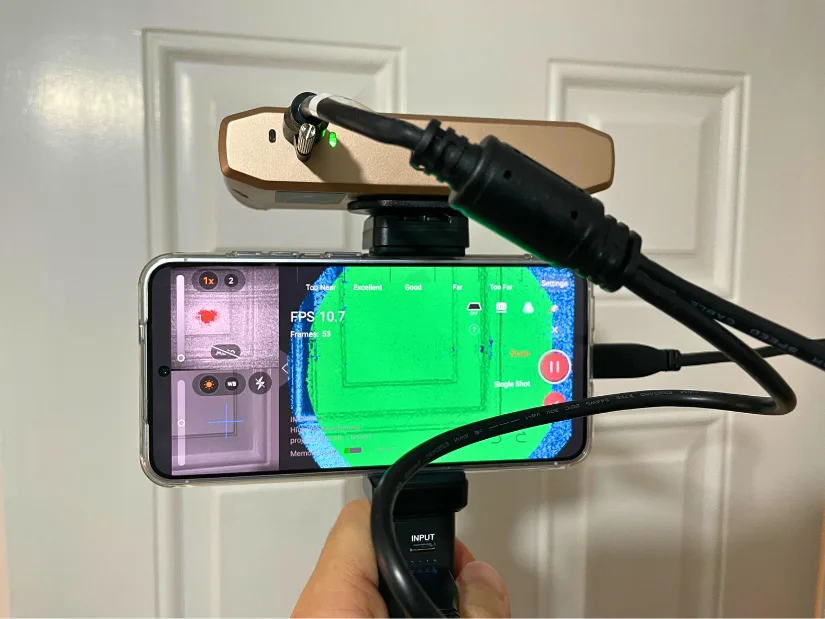
– Mobile Mode. The mobile setup didn’t take long to assemble, but installing the app and establishing a stable connection required a bit more patience. Depending on your smartphone settings, the phone may try to auto-switch Wi-Fi networks, which repeatedly disconnected the Revopoint device in my case. I eventually had to disable my router’s Wi-Fi to keep the scanner app connected consistently.
©3DWithUs – Photo: Max Funkner
Calibration
My INSPIRE 2 came pre-calibrated, and when I attempted to run the calibration process in the early stages anyway, the software informed me that the scanner was already calibrated and no further action was required.
Software: Revo Metro
I can confirm that Revopoint’s software continues to receive regular updates. Just like with the MetroX and Trackit, I ended up updating the software mid-testing to a newer version. The biggest additions since I last used Revo Metro are the shortcut to Revo Design and the ability to switch laser line modes during laser line scanning.
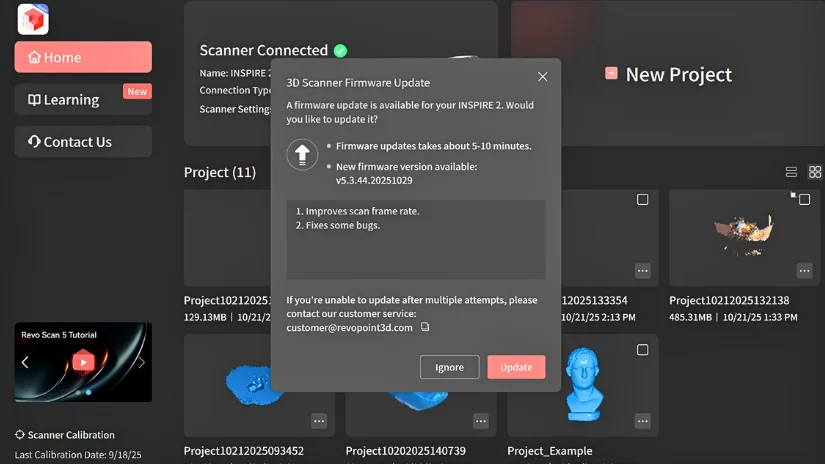
Also worth noting: Revopoint’s software naming can be confusing. There are several software programs to download with almost identical names, and I downloaded the wrong one more than once before finally getting the right version installed. I had a chance to share this feedback with Revopoint at the Formnext trade show, and Sienna agreed that having a single unified scanning software for all their scanners would be a user-friendlier approach.
From what I understand, some feature limitations relate to the overall product pricing structure. One example is that the automatic Dual-Axis Turntable tilt presets aren’t available to use with INSPIRE 2. The Dual-Axis turntable itself functions normally, but the advanced automatic tilt presets are unavailable. This sophisticated feature is reserved for more expensive scanners, such as MetroX and MetroY Pro.
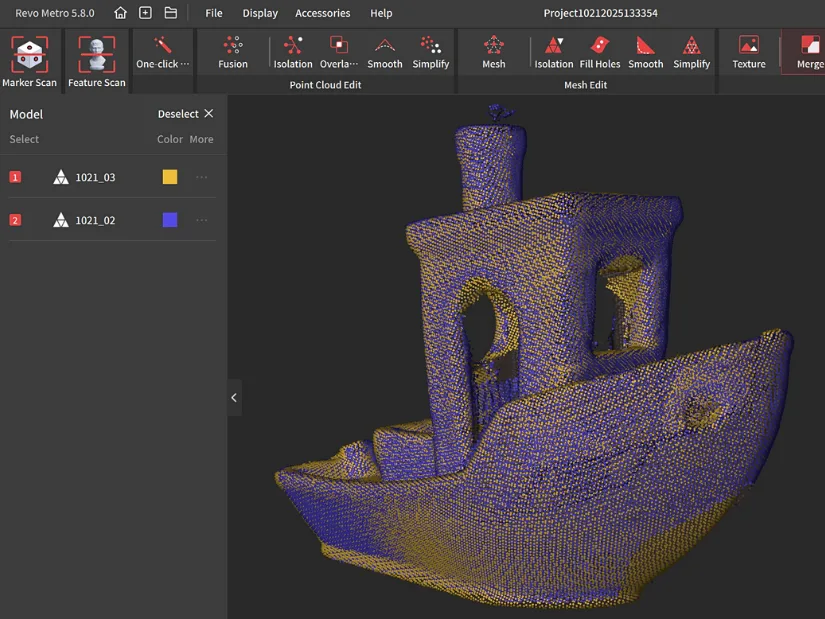
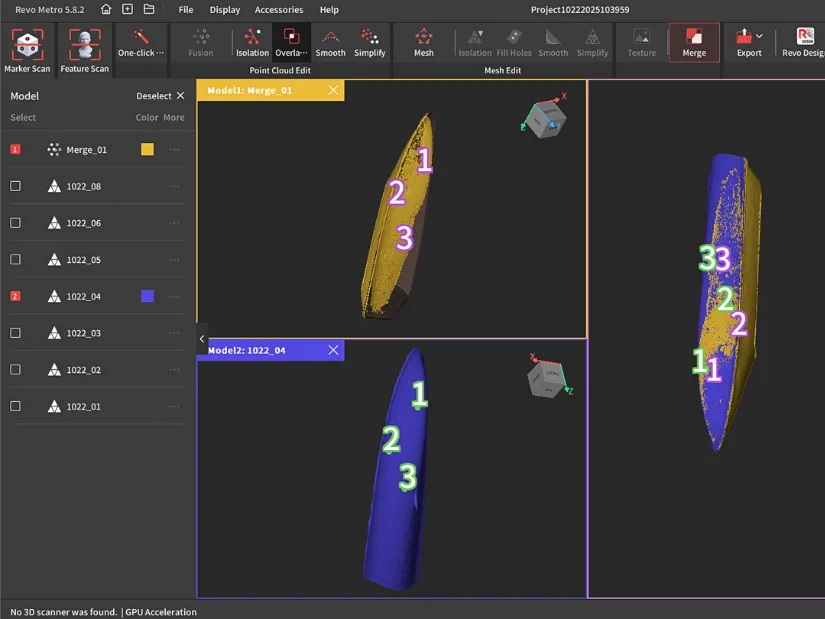
– Scans Merging. This is where I had a learning curve when I first started using Revopoint’s software. For merging to work correctly, the scans need to overlap at least a little so the software can recognise shared features and align the angles. Once I understood that, the merging process became much more consistent.
– Cleaning Scans. In a few cases, I noticed that debris kept reappearing after cleaning in Raw Point Cloud mode, sometimes returning after merging or when switching between views. What worked for me was cleaning the scan in Mesh mode first, using tools like Erase, Smooth, and Remove Floating Parts on the mesh.
Testing and Results
Color 3D Scanning Mode
It is important to note that color 3D scanning works only in Feature – Full Field Mode. I was able to scan a popular 3D printer test model, Benchy.
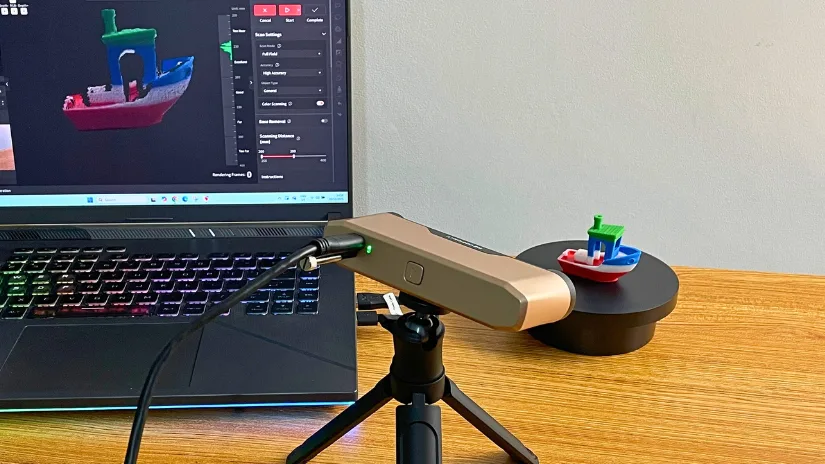
The basic turntable included with the Premium edition runs independently. Revopoint INSPIRE 2 can work wirelessly and is very light to handle. In the picture above, it is mounted on the included tripod.
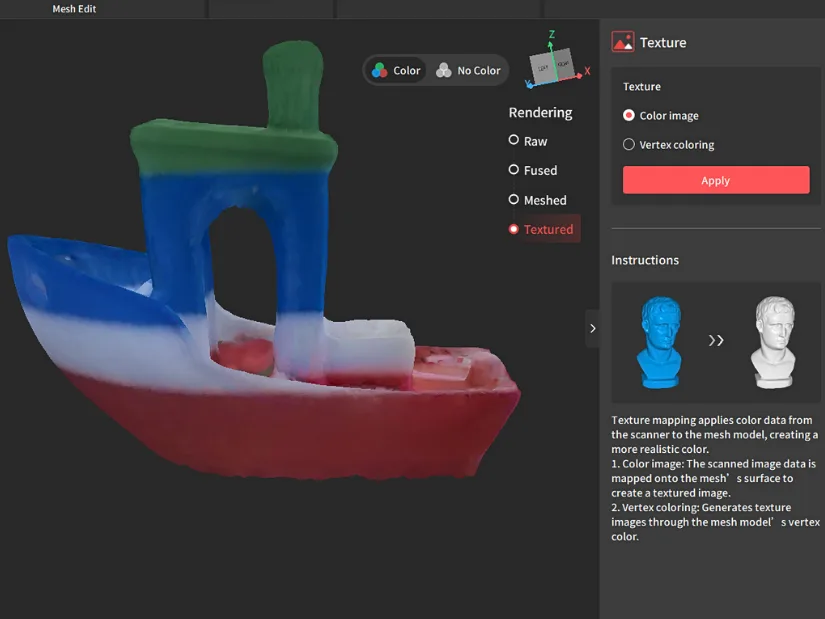
As you can see, it’s absolutely doable. With a bit more practice, I’m sure I can push the results even further. At this stage, I can clearly feel the difference compared to what I achieved with the MetroX. The INSPIRE 2 delivers both color and geometry, but the MetroX remains noticeably more capable in terms of detail and surface accuracy.
Marker Scan Mode Example
This scanner surprised me in Marker Scan Mode, as such laser technology is usually found in more expensive models like the MetroX. At first, this made me think the INSPIRE 2 might be a budget version of the MetroX, but I proved myself wrong. Despite sharing some scanning modes, the INSPIRE 2 differs in many ways, including its much lighter weight and overall handling.
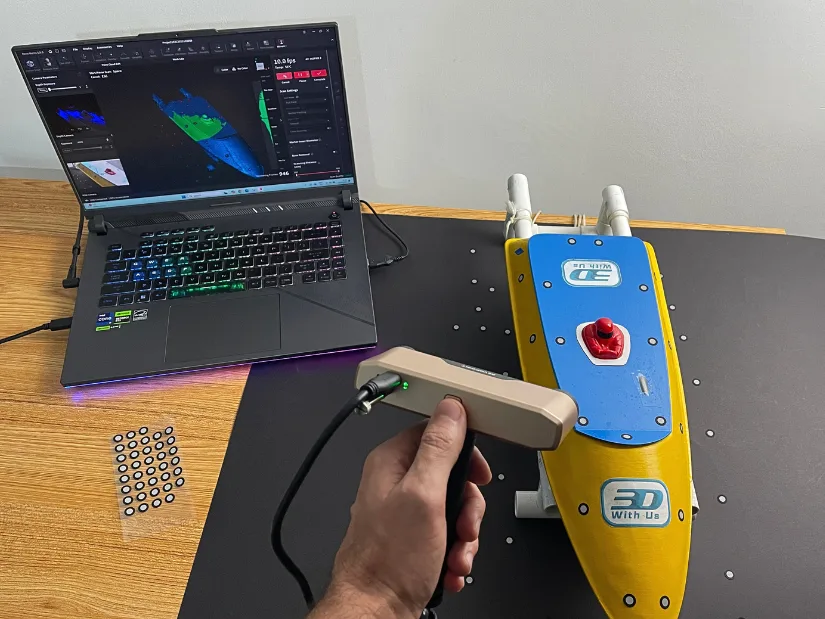
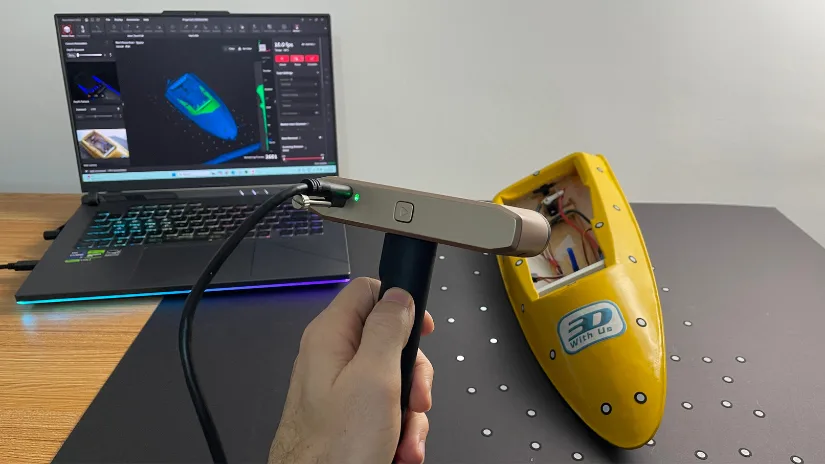
– Reflective Markers. These help the scanner track the object more precisely, but they can also be time-consuming to remove from the model afterward. While scanning my RC boat prototype, I found that dedicating a black A1 sheet was a great solution. The markers stay on the sheet permanently, and the black surface is practically invisible in certain scanning modes. Highly recommended! It saves a lot of time and keeps the object clean.
– Scanning on the Side. In my first attempt, I tried scanning the RC boat prototype while it was positioned on a DIY boat holder. The top and bottom surfaces scanned well, but the seam area, where the two halves meet, resulted in rough patches and holes. After a few tries, it became clear that scanning the model on its side works much better. When scanning the boat on its side, the scanner was able to capture enough point cloud data to merge everything cleanly. In total, it took me three separate scans to successfully merge the full boat model.
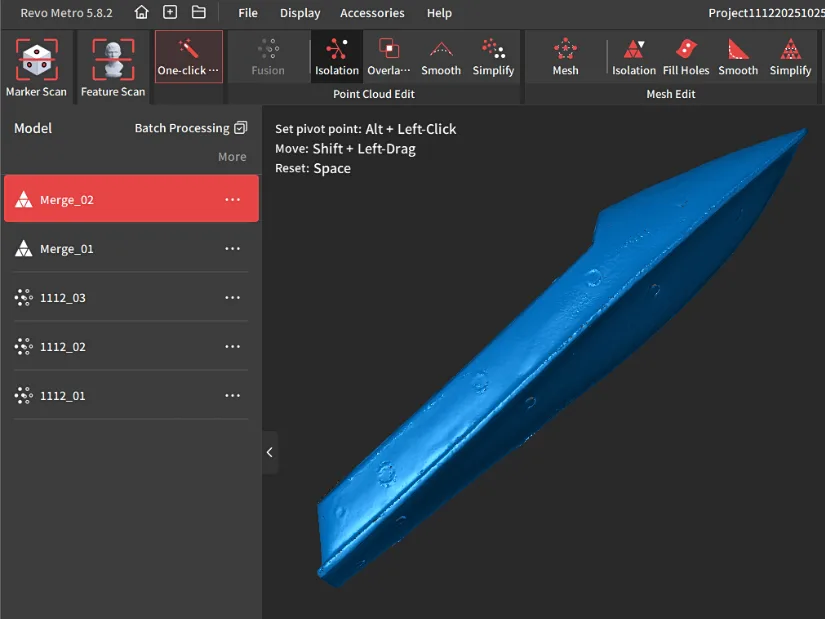
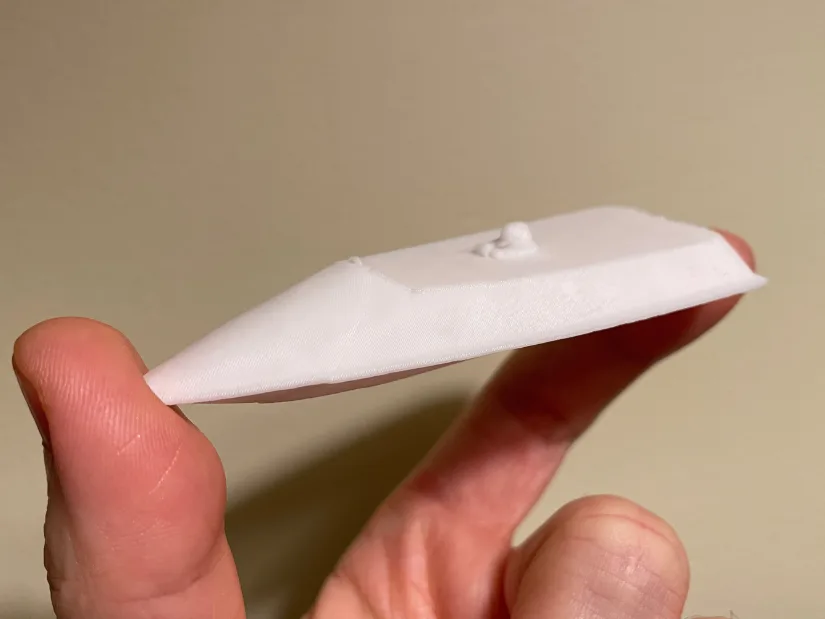
©3DWithUs – Print and Photo: Max Funkner
Of course, as usual on 3DWithUs, I had to 3D print at least one of the scanned models. This time I drastically scaled down the RC boat prototype and printed it in PLA on the Creality K2 Pro. In this particular case, Creality Print software did an impressive job repairing the mesh (using Windows Services) and preparing it for printing. Now I can feature my ongoing RC boat project as a Christmas bauble or even turn it into a small keychain accessory.
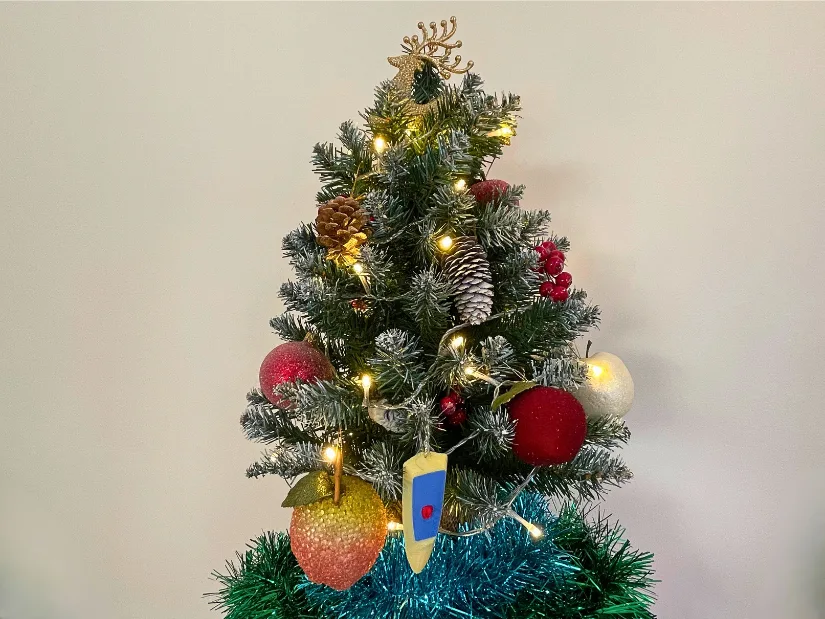
©3DWithUs – Print and Photo: Max Funkner
My Christmas Tree will have a special decoration this year. It will also work as a reminder and a New Year’s resolution to continue certain projects. Printed in 3 colors on Creality K2 Pro. Revopoint INSPIRE 2 is totally capable of creating such memorabilia.
I find scanning RC model boats a particularly interesting area. Many older boats are handmade or heavily modified over time, and combining 3D scanning with 3D printing opens up a lot of possibilities for upgrades and custom parts. It gives builders extra freedom to redesign, reinforce, or modernize their models. Read more about RC boats, 3D scanning, and 3D printing here.
Mobile Mode Test Scan
As I mentioned in Setup area the mobile setup didn’t take long to assemble, but installing the app and establishing a stable connection took me some time. Depending on your smartphone settings, the phone may try to auto-switch Wi-Fi networks, which repeatedly disconnected the Revopoint device in my case. I eventually had to disable my router’s Wi-Fi to keep the scanner app connected consistently.
– Scanner Weight. The INSPIRE 2 itself (without the power bank) weighs just 190 g, and this is clearly one of the biggest selling points of the device. Scanning for longer periods with heavier, more expensive scanners can quickly become tiring, but the lightweight INSPIRE 2 makes handheld scanning noticeably easier and more comfortable.
I’ll continue testing the INSPIRE 2 in mobile mode, including scanning different objects and lighting conditions. More mobile-mode results and examples will be added to this article.
Compare to Other 3D Scanners
Compare to the Revopoint other 3D scanners series:
In comparison to other Revopoint scanners, the INSPIRE 2 sits in the entry-level segment, yet it surprisingly incorporates technologies usually found in more expensive models, such as combined structured light and infrared laser modes. As mentioned earlier, my first impression was that it might be a ‘budget MetroX,’ but in practice it has its own strengths, with lightweight design being one of the most notable. For many users, especially those who prefer handheld scanning, this alone can be a compelling reason to choose it.
As 3D scanning technology becomes accessible, there is also competition with offerings from brands like 3DMakerpro, Creality, and Einstar. Read more about other 3D scanners on our website.
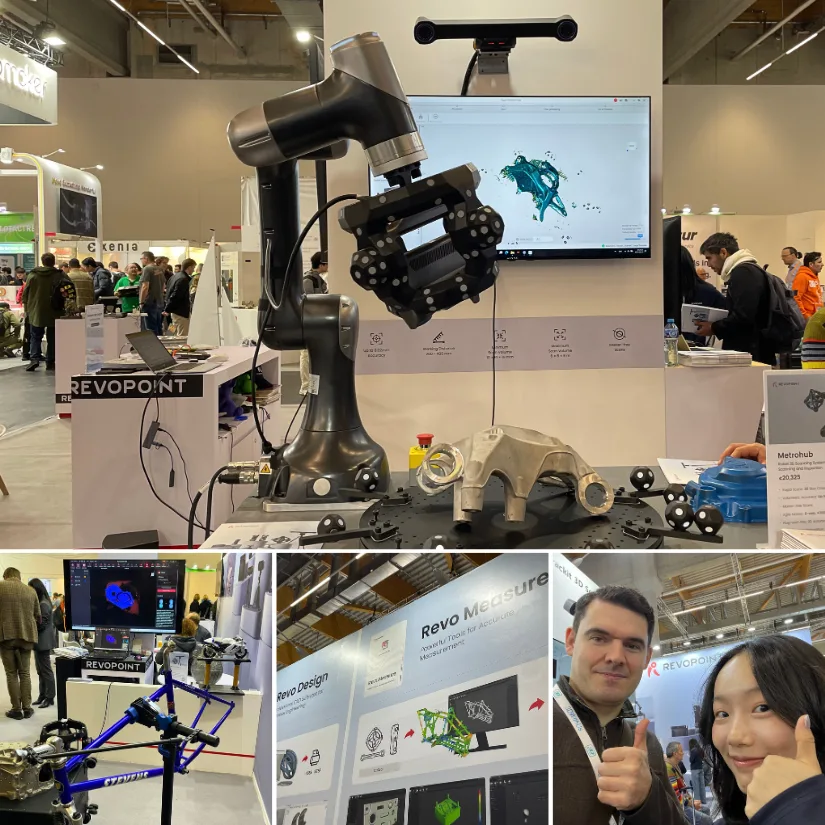
On 3DWithUs we’ve often featured Revopoint 3D scanners as entry-level, budget-friendly devices, but it’s clear that Revopoint as a company operates on a much larger scale. Their presence at Formnext 2025 showed this well. From autonomous robotic arm scanning using TrackIt, to the more advanced MetroY setups, and the wider Revo software ecosystem including Revo Design, Revo Measure and Revo Scan. It’s a brand that manages to offer accessible consumer scanners like the INSPIRE 2 while also developing serious professional solutions. This combination of affordability and ambitious innovation keeps Revopoint visible both in the maker community and in the professional scanning market.
Have questions? Feel free to ask in the comment section below.
For a wider discussion or to share your own INSPIRE 2 scans, join us in the forum:
Conclusion and Pros & Cons
Compare the Prices & Bundles:
Official Website | Amazon | AliExpress
Revopoint INSPIRE 2 Review
Review Summary
The Revopoint INSPIRE 2 left me with a generally positive impression, especially considering its positioning as an entry-level, budget-friendly scanner. It’s lightweight, portable, and surprisingly capable thanks to its combination of structured light and infrared laser modes. For smaller objects, prototypes, props, and day-to-day maker tasks, it delivers usable geometry with minimal setup effort. The Premium package also makes sense if you want true mobile scanning, and at just 190g the scanner is genuinely comfortable to use for longer handheld sessions.
That said, the overall experience depends heavily on learning the workflow. Revo Metro took me a little time to understand, particularly when it comes to mesh cleaning, merging, and preventing debris from reappearing. Once I switched to cleaning in Mesh mode first, things became far more predictable. Mobile mode works well too, but the Wi-Fi handoff behaviour on some smartphones can add extra steps. Feature-wise, INSPIRE 2 shares some DNA with Revopoint’s more expensive models, but it’s not a budget MetroX. It has its own strengths, especially weight and mobility, and its own limitations in fine detail and surface accuracy.
Overall, the INSPIRE 2 is a practical, approachable scanner for beginners and hobbyists. For more advanced users who can tolerate a heavier device, I would recommend considering the MetroX or MetroY. The INSPIRE 2 offers an affordable entry point into 3D scanning while still being part of a wider Revopoint ecosystem.
PROS
– Very lightweight (190 g) and comfortable for handheld scanning
– Affordable entry point into structured-light + IR laser scanning
– Revo Metro continually updated with new features
– Good for small and medium objects like models, props, and prototypes
– Precise in Marker Scan Mode
CONS
– Fine detail and precision can’t match MetroX or higher-end models
– Mobile mode can be unstable depending on smartphone Wi-Fi behaviour
– Workflow has a learning curve (merging, cleaning, debris handling)
– Dual-Axis Turntable support is limited in Revo Metro at this stage
– Color scans are possible but require practice for optimal results